Smart Prints Restaurant Management System Last updated: July 31, 2026
Operations and User Guide
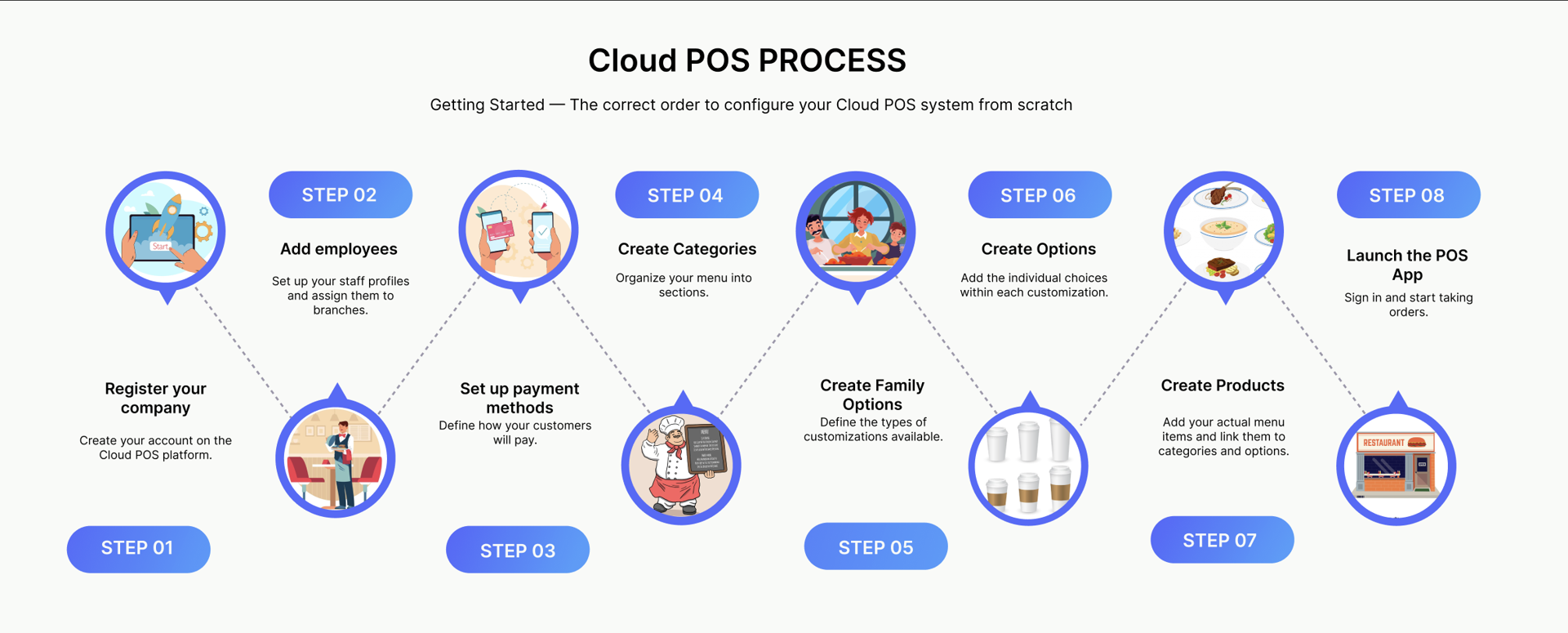
This guide introduces the main Smart Prints modules and walks through registration, employee setup, shift visibility, payment methods, menu building, POS launch, and frequently asked questions.
Overall onboarding flow from account setup to POS launch.
System Modules at a Glance
Module
Purpose
Cloud POS
Core terminal for processing orders and payments
Cloud Administration
Manage items, prices, users, branches, and settings
Smart Kiosk
Self-service terminal with Arabic/English support
Smart Kitchen App
Digital screens to coordinate kitchen orders (Pro)
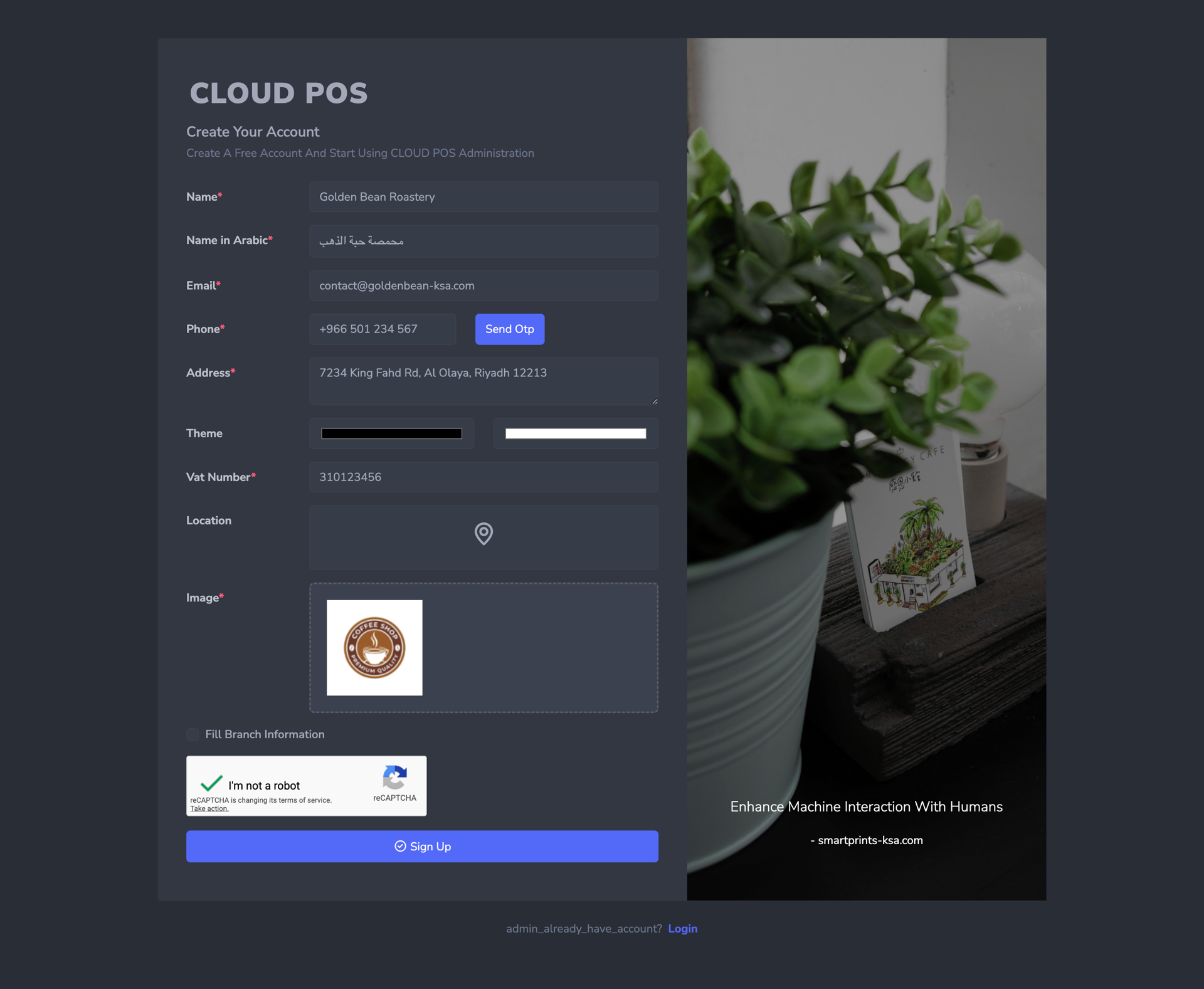
Before accessing any module, register your company on the Smart Kiosk platform. The registration form is titled "Cloud POS - Create your account".
Complete every field marked with a red asterisk (*) as they are required.
Step 1: Fill in Your Company Details
On the registration form, enter the following:
Field
What to Enter
Name *
Your company name in English (e.g., Restaurant Business)
Name Ar *
Your company name in Arabic (e.g., مطعم بزنس)
Email *
Your professional email address
Phone *
Your phone number, then click Send OTP to verify
Address *
Your full business address
Theme
Click either the dark (black) or light (white) swatch to choose your display theme
Vat Number *
Your VAT registration number
Location
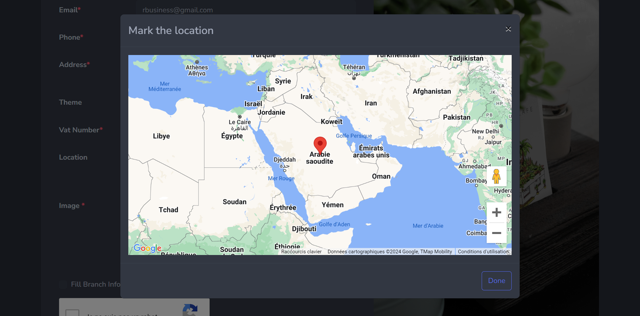
Click the location pin icon inside the field. A map popup titled "Mark the location" will appear. Drop the pin on your exact location, then click Done
Image *
Upload your company logo
Registration form where you enter company information.Map popup used to pin the exact branch location.
Step 2: Verify Branch and Complete Signup
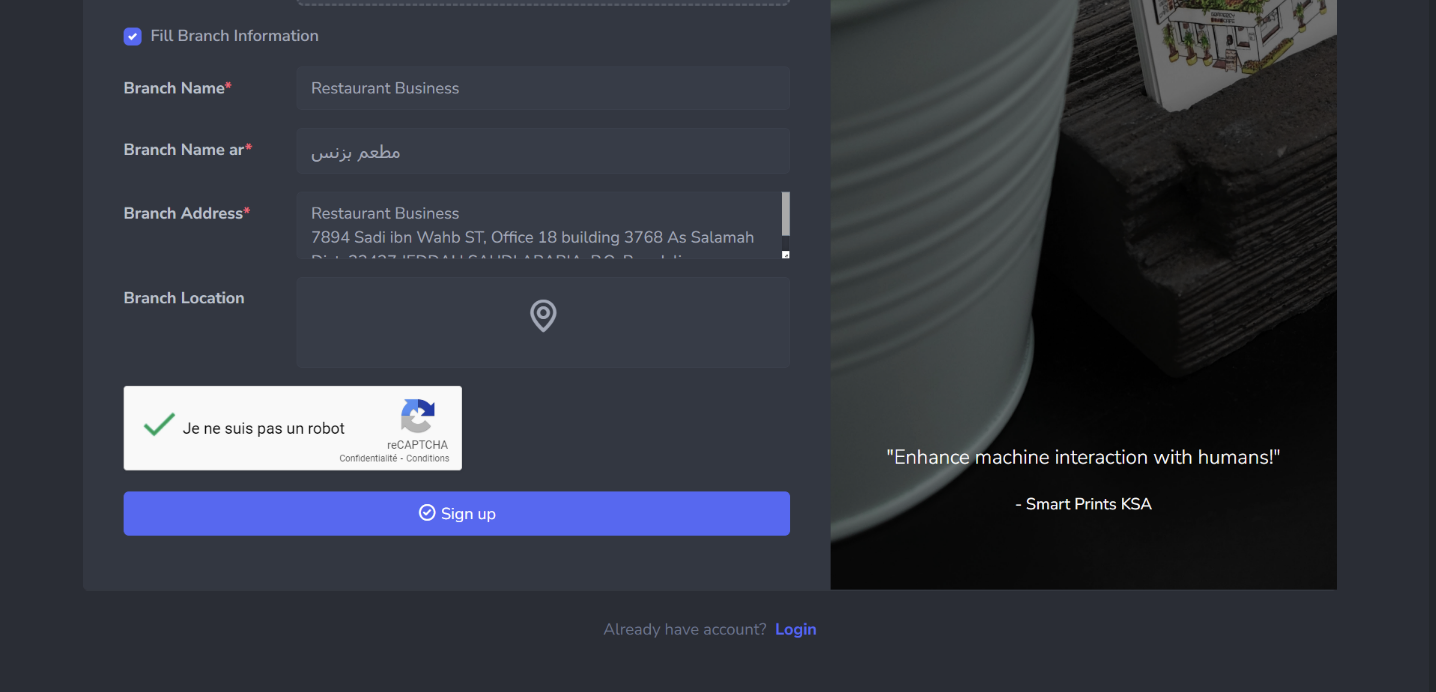
Tick the Fill Branch Information (optional) checkbox to confirm your branch details have loaded correctly. Review and adjust if needed. Check the "I'm not a robot" reCAPTCHA box, as without this you cannot proceed. Click the blue Sign up button to submit.
If you already have an account, click Login at the bottom of the page instead.
Review the branch details before completing signup.
Step 3: Your Dashboard
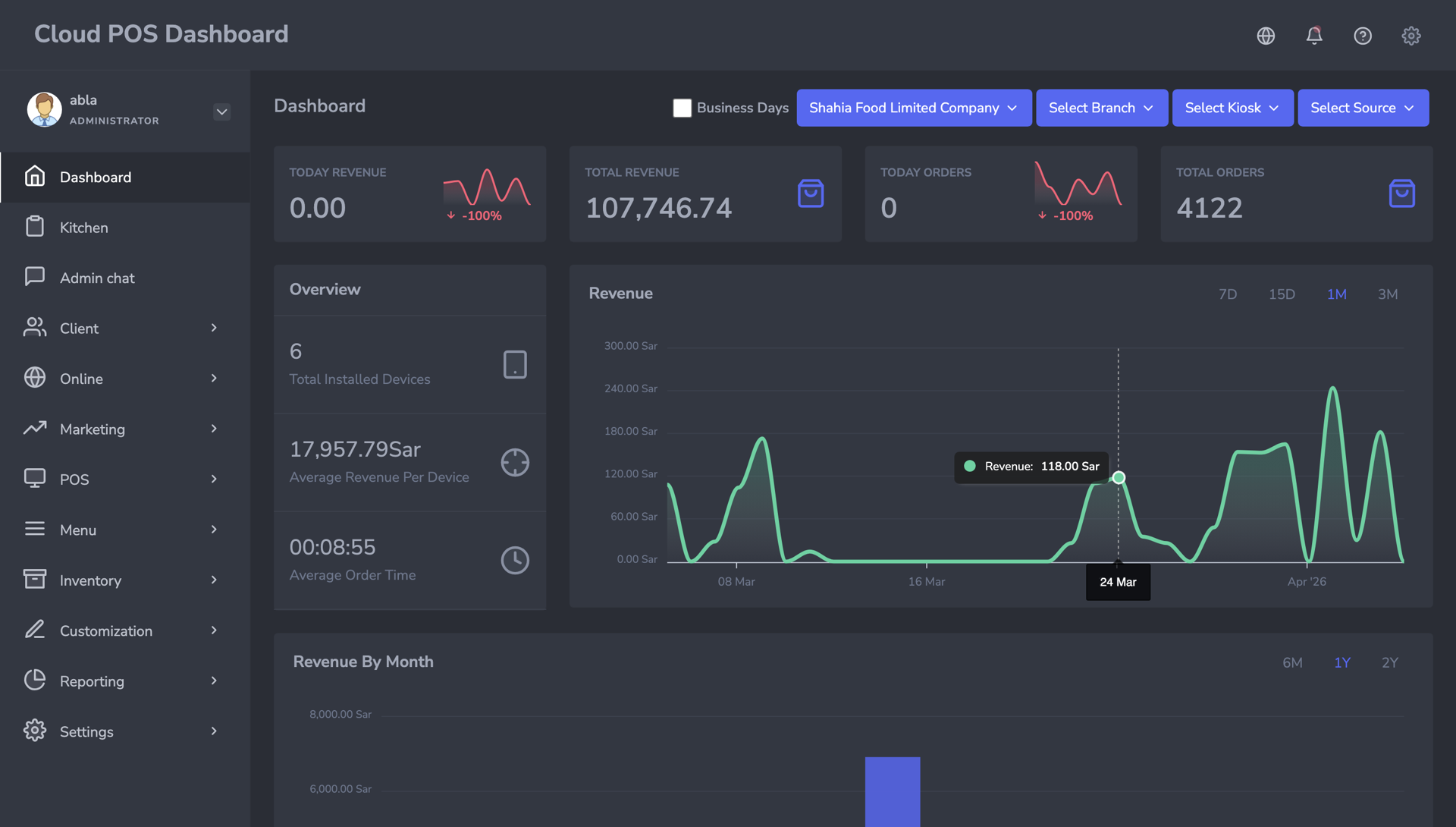
After signing up, you will land on the Cloud POS Administration dashboard. You will see the following:
Top bar with KPIs: Today Revenue, Total Revenue, Today Orders, Total Orders
Overview panel showing Total installed Kiosks, Average Revenue Per Kiosk, and Average Order Time
Revenue chart filterable by 7d / 15d / 1m / 3m
Top-right filters for Select Branch, Select Kiosk, and Select Source
The left sidebar is your main navigation and contains all available features, tiered as follows:
Badge
Meaning
(no badge)
Free, available to all accounts
Pro (green)
Requires the Pro subscription
Adv (red)
Requires the Advanced subscription
Features visible in the sidebar include Dashboard, Kitchen (Pro), Client, Online (Adv), Marketing, POS, Menu, Inventory (Adv), and Customization.
Cloud POS Administration dashboard after a successful signup.
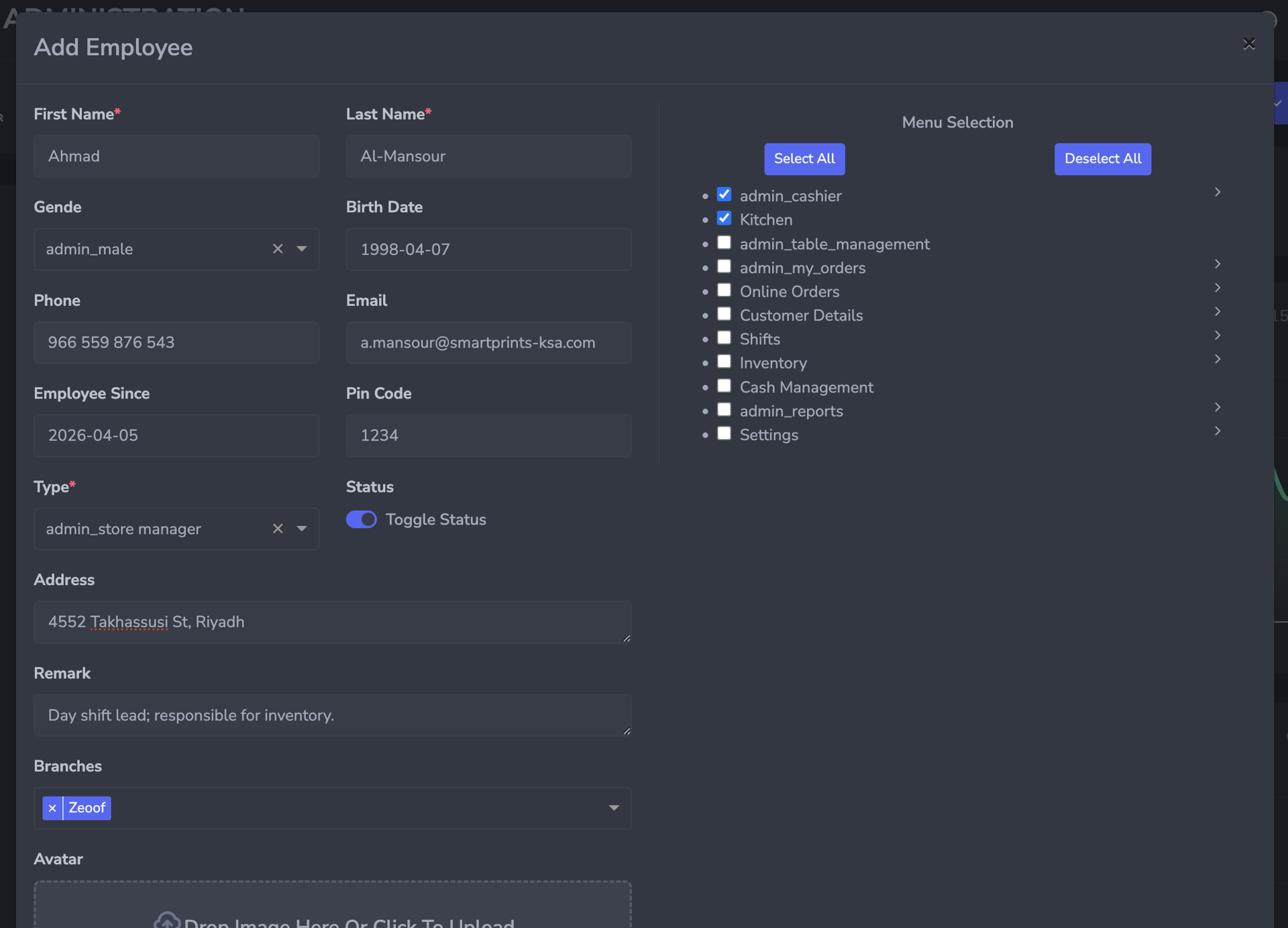
Click the blue + Add employee button. The Add Employee form will appear with the following fields:
The Add Employee form for creating a cashier or manager profile.
Field
Details
First Name *
Employee's first name
Last Name *
Employee's last name
Gender
Select Male or Female from the dropdown
Birth date
Format: YYYY-MM-DD (e.g., 1989-05-18)
Phone
Employee's contact number
Email
Employee's professional or company email
Employee since
Start date in format: YYYY-MM-DD
Pin Code
A 4-digit PIN the employee uses to log in to the POS App
Status
Toggle to enable (active) or disable (inactive)
Address
Employee's work-related address
Type *
Select Store Manager or Cashier from the dropdown
Remark
Optional internal notes about the employee
Avatar
Upload a profile photo or icon
Branches
Select the branch(es) to assign this employee to
Permissions
Tick the POS screens and actions this employee is allowed to use after they log in with their PIN. See the list below.
2.1.1 Permissions
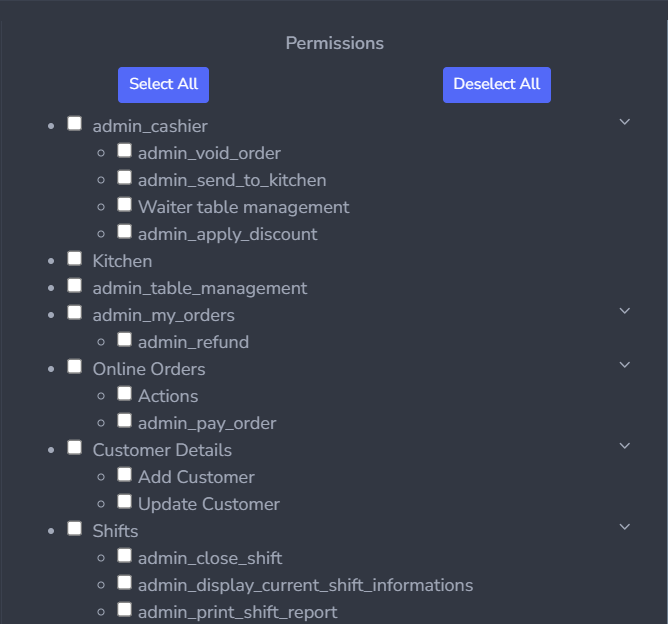
At the bottom of the form you will see a Permissions tree. This list controls what the employee can see and do in the POS app. If a box is ticked, that screen or action is allowed. If it is left empty, it is hidden or blocked.
Use Select All to give every permission, or Deselect All to start from nothing. For most staff, tick only the items they need for their job.
A parent item (for example admin_cashier or Inventory) opens that POS menu. The nested boxes under it are extra actions inside that menu. Tick the parent so the employee can open the screen, then tick each nested action you want them to use.
Give each person only the access they need. Sensitive actions such as void, discount, refund, close shift, and settings change sales totals or device configuration, so they are usually reserved for supervisors.
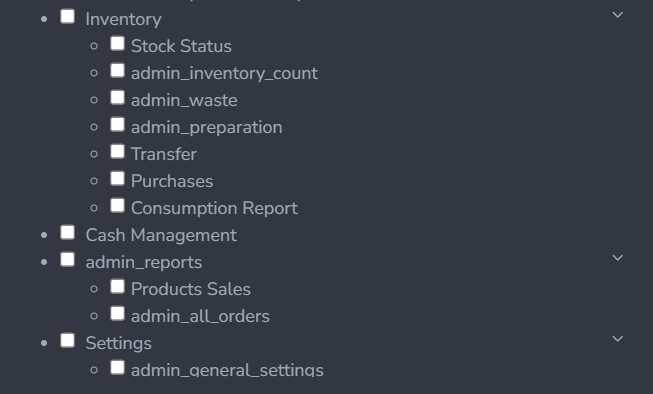
Permissions for cashier, kitchen, tables, orders, customers, and shifts.Permissions for inventory, cash management, reports, and settings.
Cashier, kitchen, tables, orders, customers, and shifts
Permission (as shown)
What the employee can do
admin_cashier
Open the Cashier screen: browse the menu, add items to a cart, and take payments. This is the main selling screen. A cashier needs this to work at the till.
admin_void_order
Cancel a whole order after it has been created. Voids change sales totals, so give this only to trained staff.
admin_send_to_kitchen
Send the current order to the kitchen display so cooks can start preparing it.
Waiter table management
Use waiter table actions from Cashier, such as linking an order to a dine-in table while selling.
admin_apply_discount
Apply a discount to the current order.
Kitchen
Open the Kitchen area so this employee can see and handle kitchen tickets.
admin_table_management
Open Table Management (Smart Waiter): see the floor plan, seat tables, and run dine-in service.
admin_my_orders
Open My Orders to view tickets from the current shift.
admin_refund
Refund money on an already paid order.
Online Orders
Open Online Orders to see delivery and aggregator orders (for example HungerStation or Jahez).
Actions
Act on an online order: accept it, update its status, or print it.
admin_pay_order
Collect payment for an online order at the POS.
Customer Details
Open the customer list used during sales.
Add Customer
Create a new customer record.
Update Customer
Edit an existing customer record.
Shifts
Open the Shifts screen.
admin_close_shift
Close the current shift and count the cash drawer.
admin_display_current_shift_informations
View current shift details, such as opening amount and sales so far.
admin_print_shift_report
Print the shift report at the end of the session.
Inventory, cash, reports, and settings
Permission (as shown)
What the employee can do
Inventory
Open Inventory in the POS app. Tick the nested items below for each inventory task this person is allowed to perform.
Stock Status
View live stock levels for ingredients and items.
admin_inventory_count
Record a physical inventory count (what is actually on the shelf).
admin_waste
Log wasted ingredients or products so the loss is tracked.
admin_preparation
Record kitchen preparation or production batches (for example turning raw items into prepared stock).
Transfer
Create or receive stock transfers between branches.
Purchases
Record purchases and incoming stock from suppliers.
Consumption Report
View ingredient usage based on sales and recipes.
Cash Management
Record cash in and cash out movements during a shift so the drawer can be reconciled.
admin_reports
Open Reports in the POS app.
Products Sales
View how many of each product were sold and the revenue.
admin_all_orders
View the full All Orders list for the branch.
Settings
Open Settings in the POS app.
admin_general_settings
Change general POS settings such as data sync, language, screen layout, and kitchen connection. Keep this for managers.
Example: a cashier often needs admin_cashier, admin_send_to_kitchen, admin_my_orders, and Add Customer. A store manager usually also needs void, discount, refund, close shift, reports, and inventory.
Click Submit (green button) to save, or Close (red button) to cancel.
2.2 Viewing the Employee List
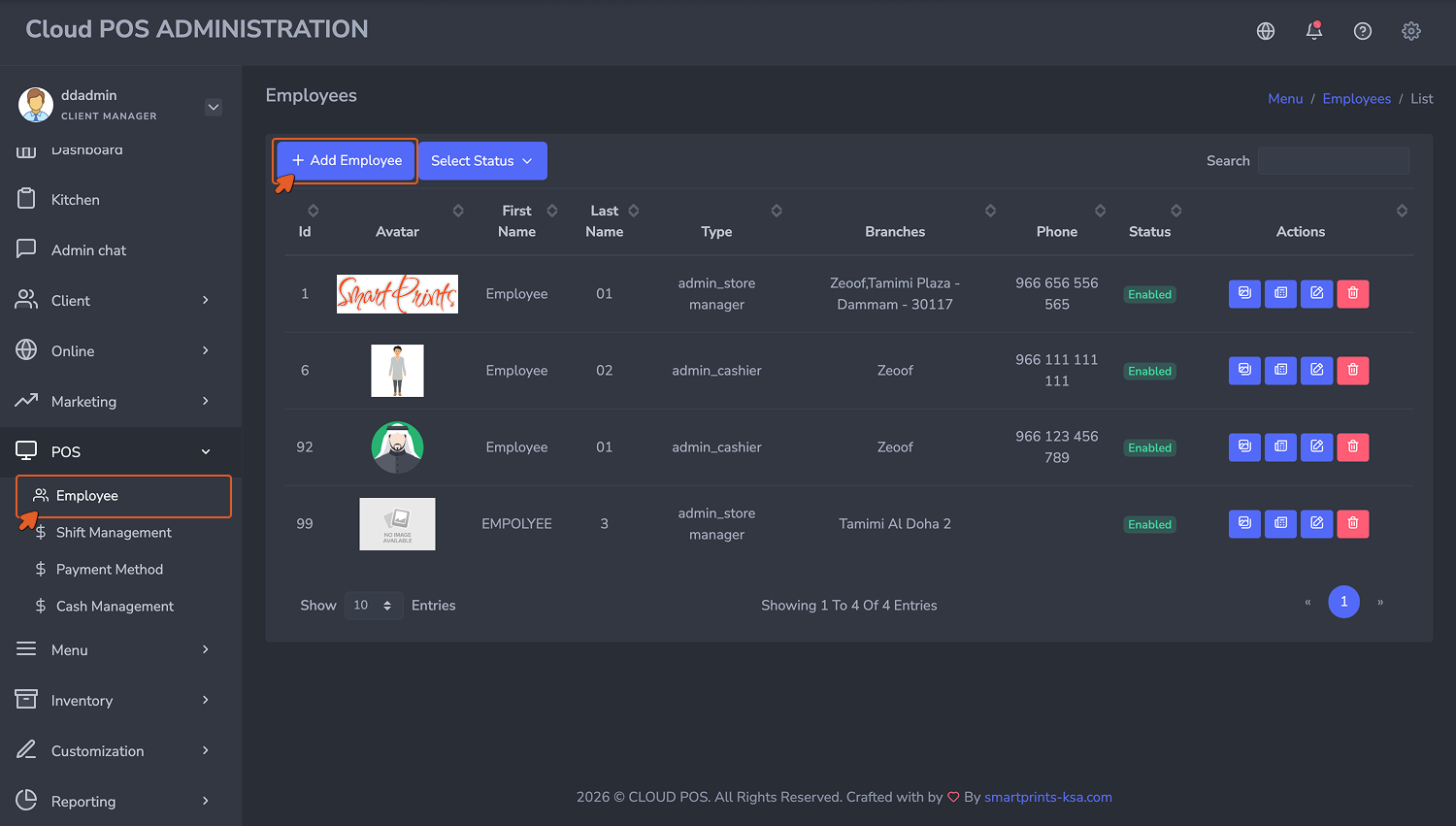
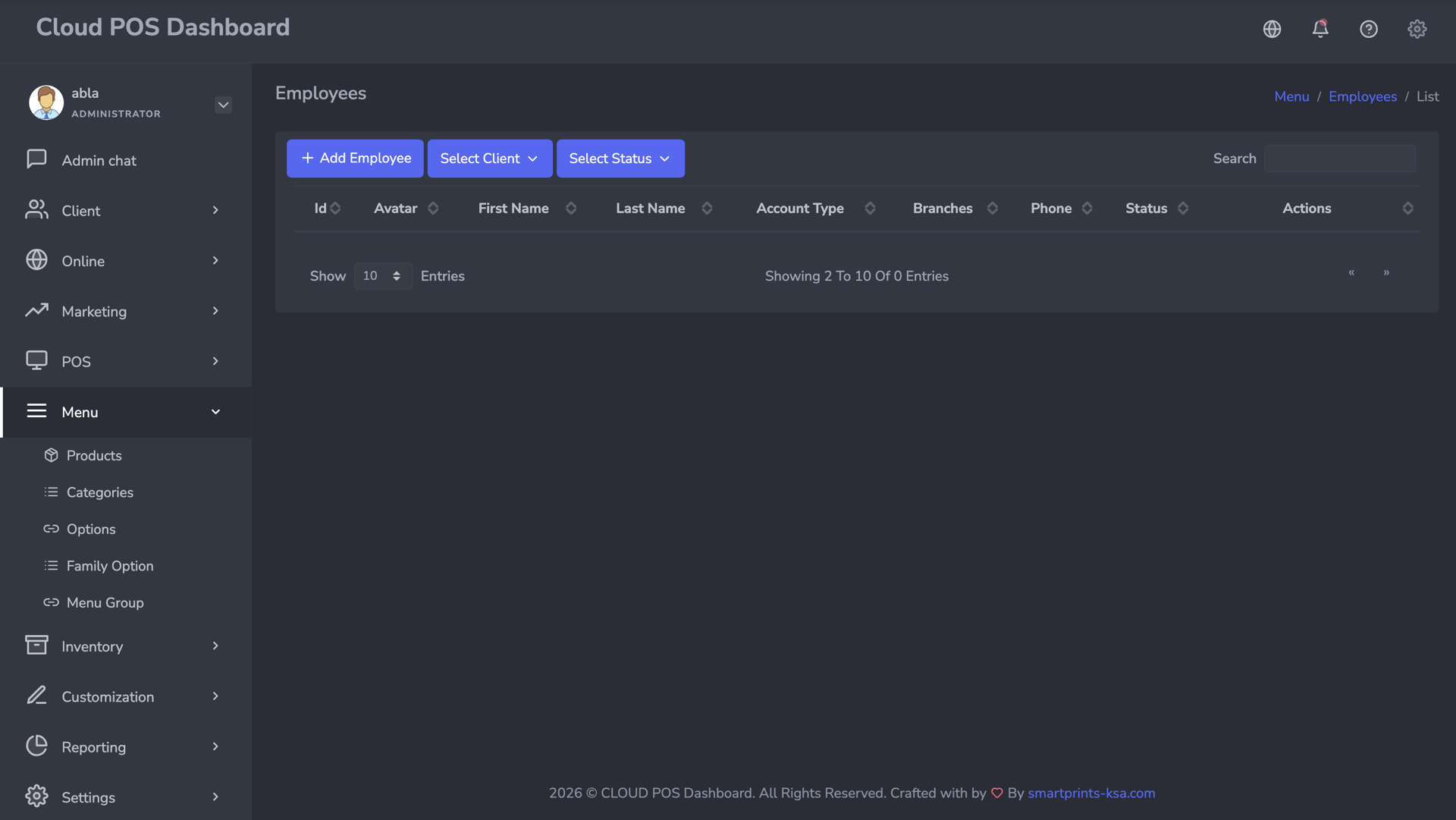
Once saved, the employee appears in the Employees list table showing ID, Avatar, First Name, Last Name, Type, Branches, Phone, Status, and Actions. Use the Select status dropdown to filter by Active or Inactive. The Actions column has buttons to view, copy, edit, or delete each employee record.
Employee list with status filters and row actions.
Navigate to POS -> Shift Management in the left sidebar.
Shifts can only be opened or closed from the POS App, not from the Administration panel.
The shift list displays the following columns: ID, Branch Employee, Business Date, Opened At, Opening Amount, Closing Amount, Expected Amount, and Closed At.
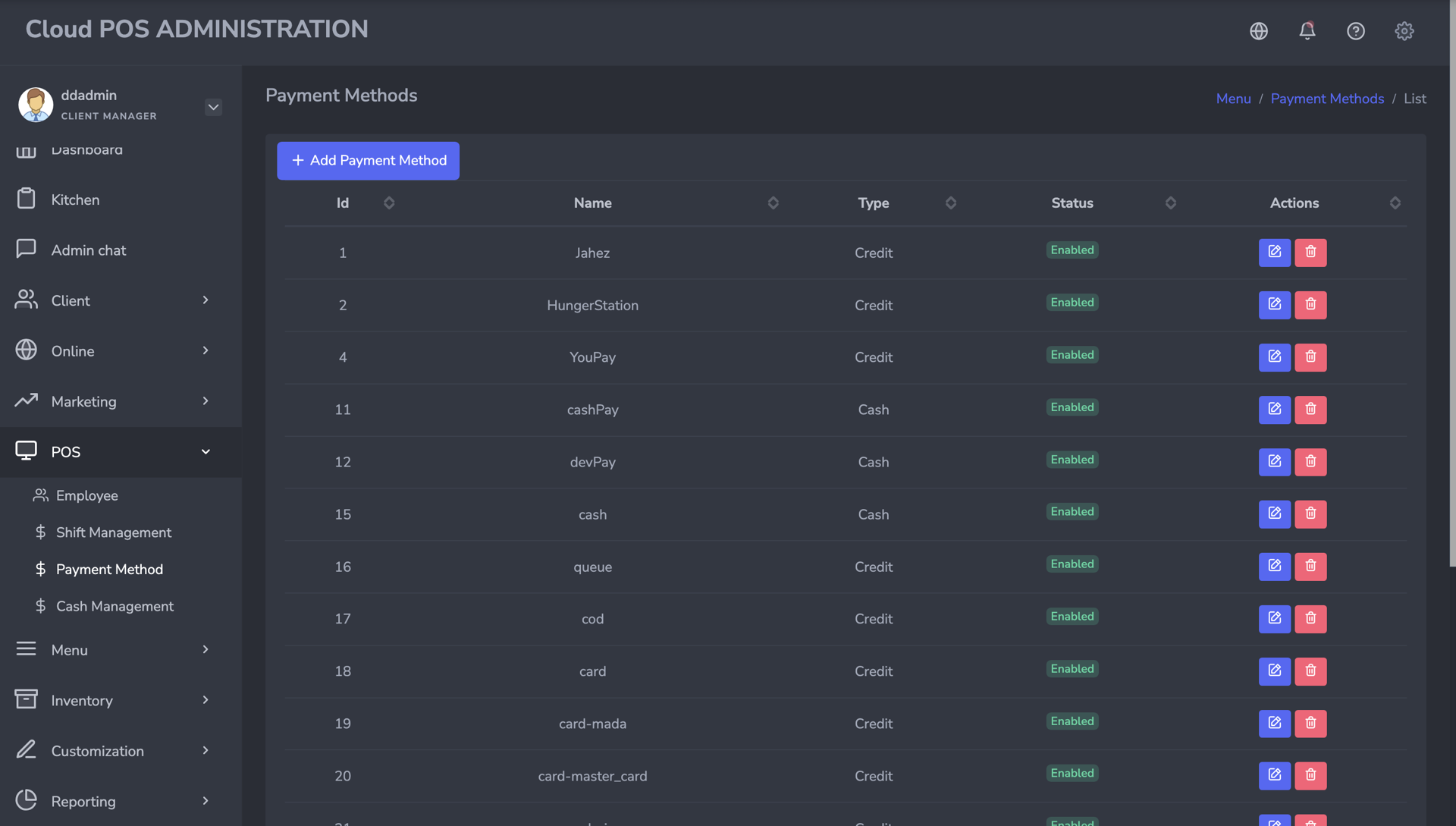
Navigate to POS -> Payment Method in the left sidebar.
Payment Method list screen inside the POS administration area.
Adding a Payment Method
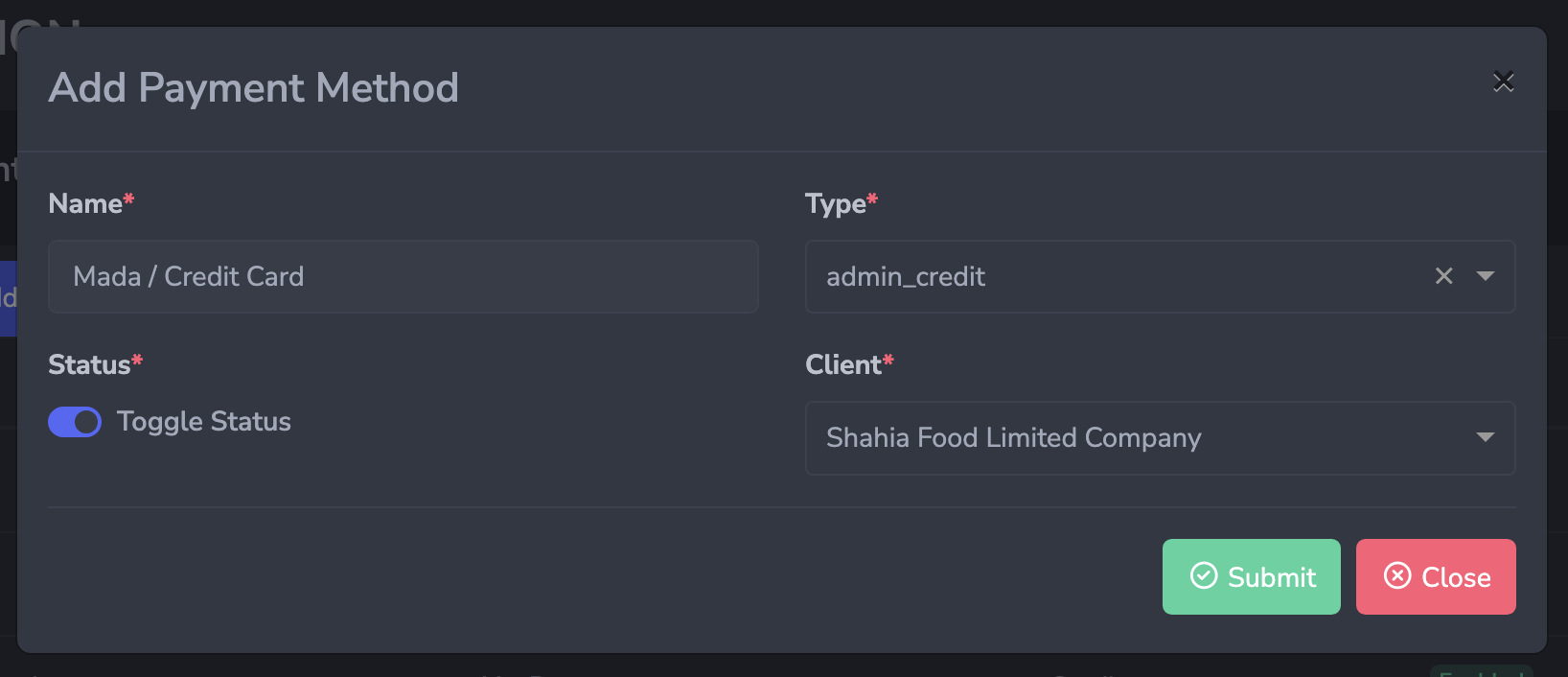
Click + Add Payment Method. The form contains the following fields:
Field
Details
Name *
Name of the payment method (e.g., Mada, Cash, Visa)
Type *
Select the type, for example Credit or Cash
Status *
Toggle to enable or disable this method
Client *
Select the branch this method applies to
Click Submit to save. The new method will appear immediately in the Payment Methods list showing its ID, Name, Type, Status, and action buttons to edit or delete.
Form used to add a new payment method for a branch.
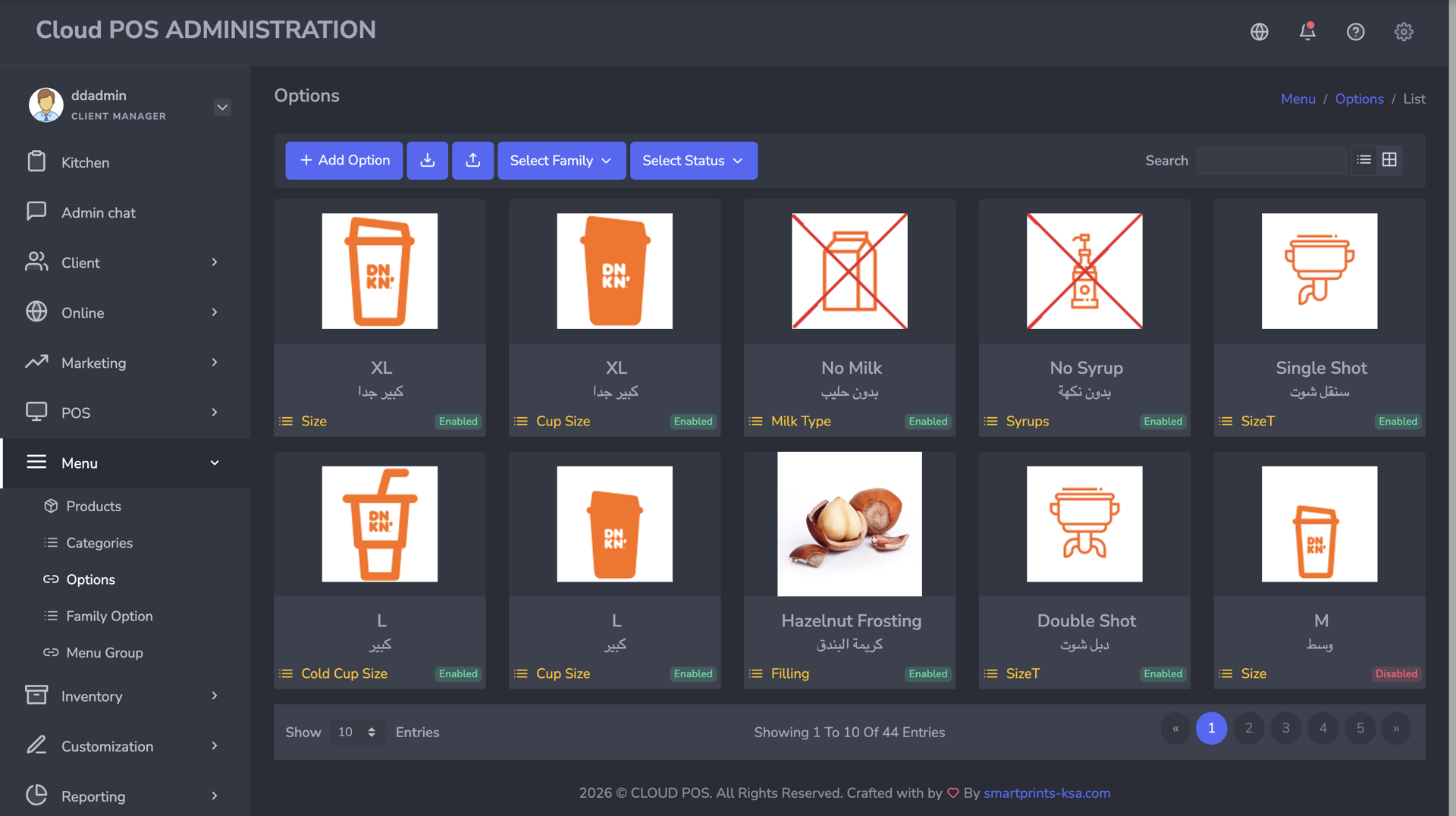
Navigate to Menu in the left sidebar. The Menu section contains Products, Categories, Options, Family Option, and Menu Group (Pro).
Menu area in the administration sidebar.Use this sequence when building the menu structure.
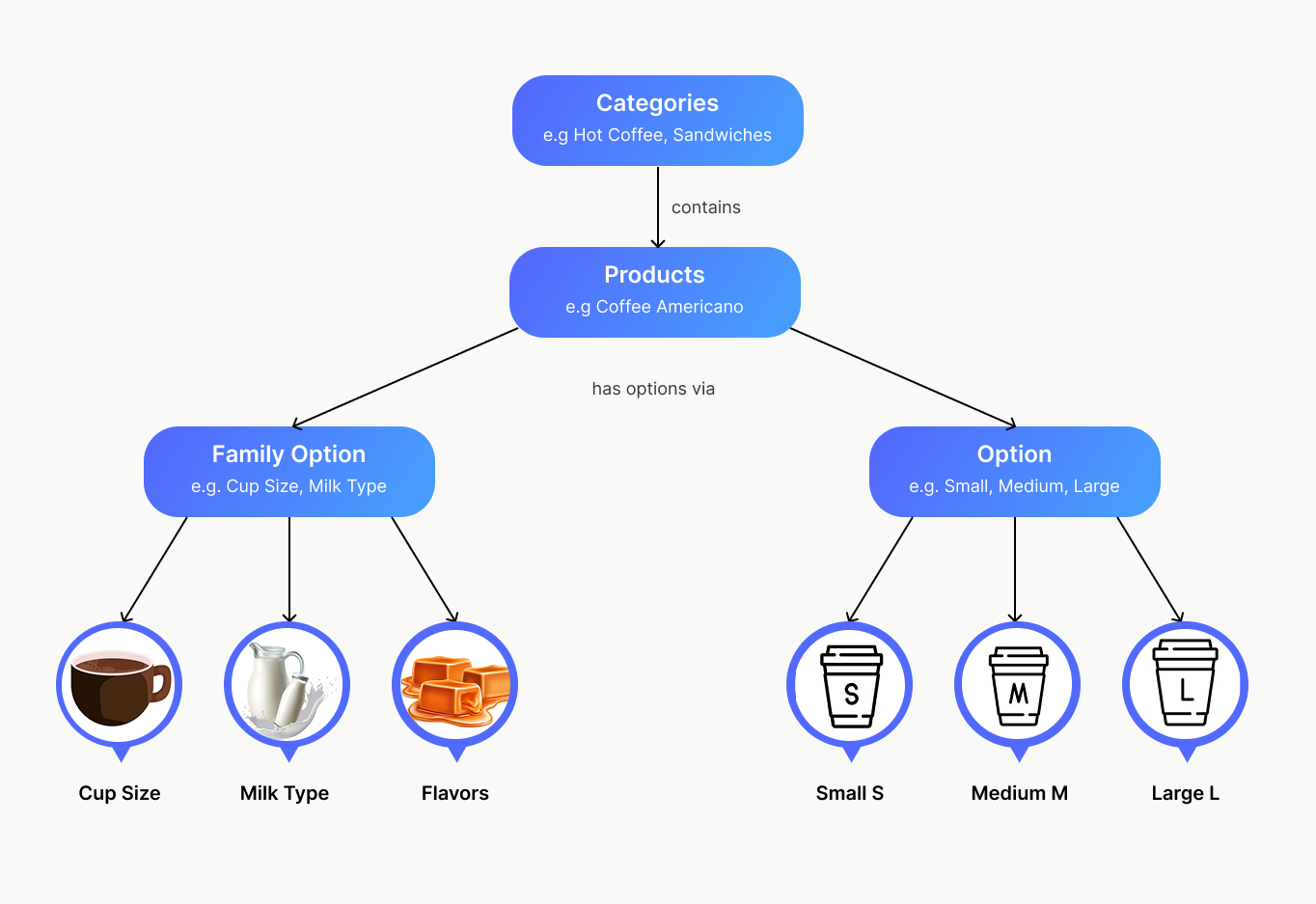
Build in this order: Categories, then Family Options, then Options, then Products. Each level depends on the one above it.
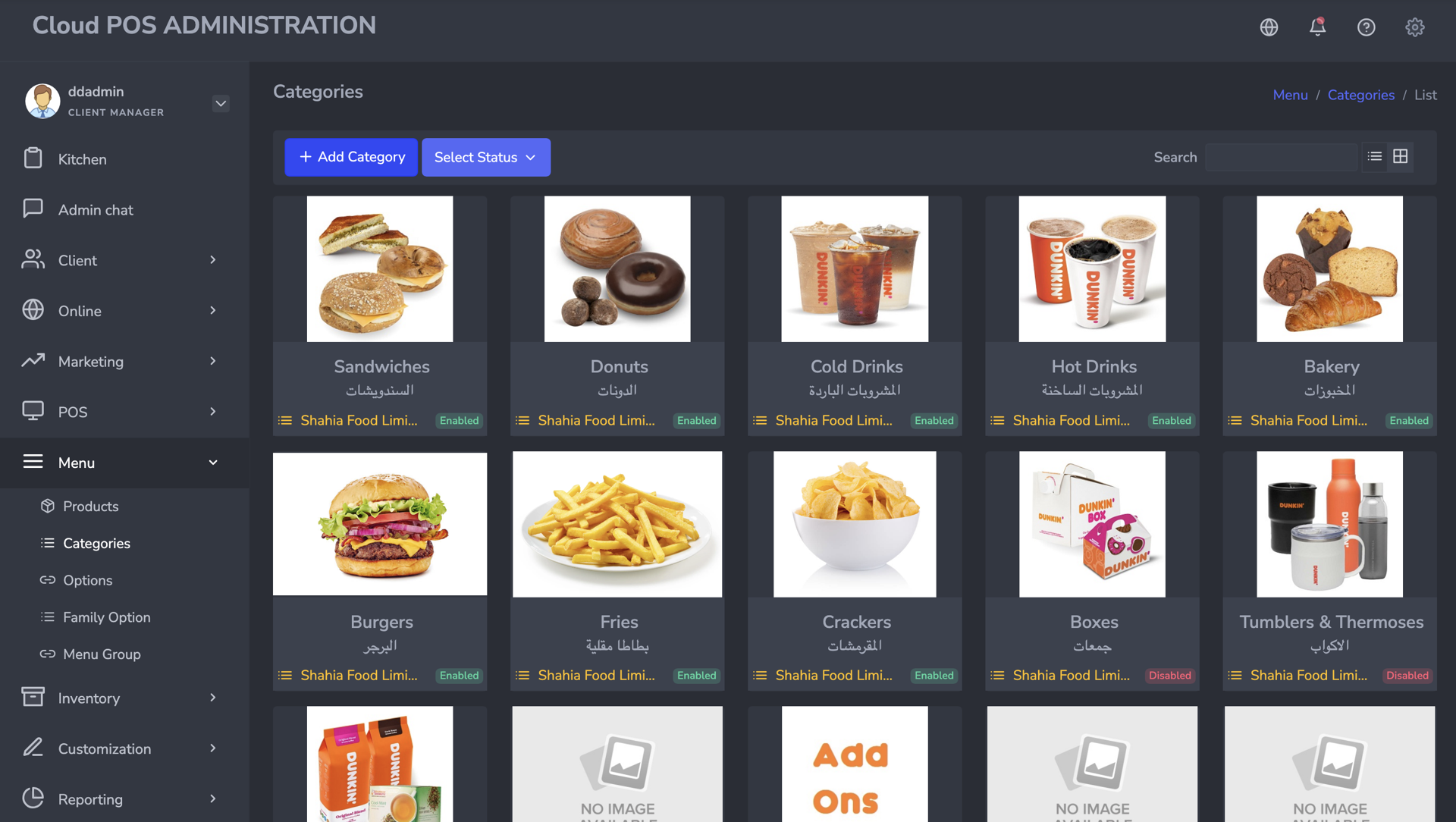
5.1 Categories
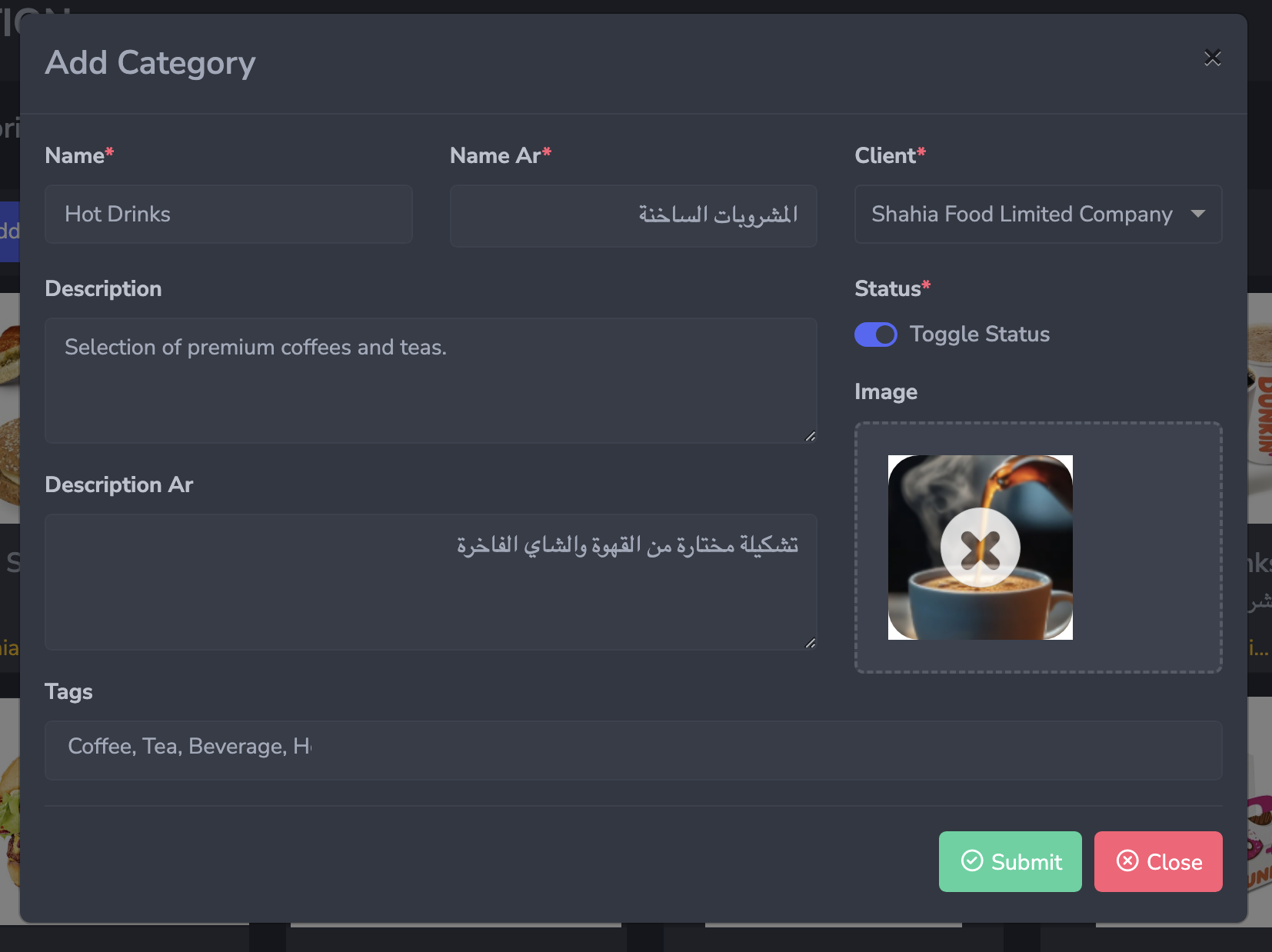
Go to Menu -> Categories, then click + Add Category.
Categories list before adding a new menu category.Add Category form with bilingual names and image upload.
Field
Details
Name *
Category name in English (e.g., Hot Coffee)
Name Ar *
Category name in Arabic (e.g., قهوة ساخنة)
Client *
Select the branch this category belongs to
Description
Optional description in English
Description Ar
Optional description in Arabic
Status *
Toggle to enable or disable the category
Image
Upload a representative image for the category
Tags
Enter search keywords and press Enter after each one
Click Submit to save. The category will appear as a card in the Categories list, showing its image, name in both languages, branch tag, and Enabled/Disabled status.
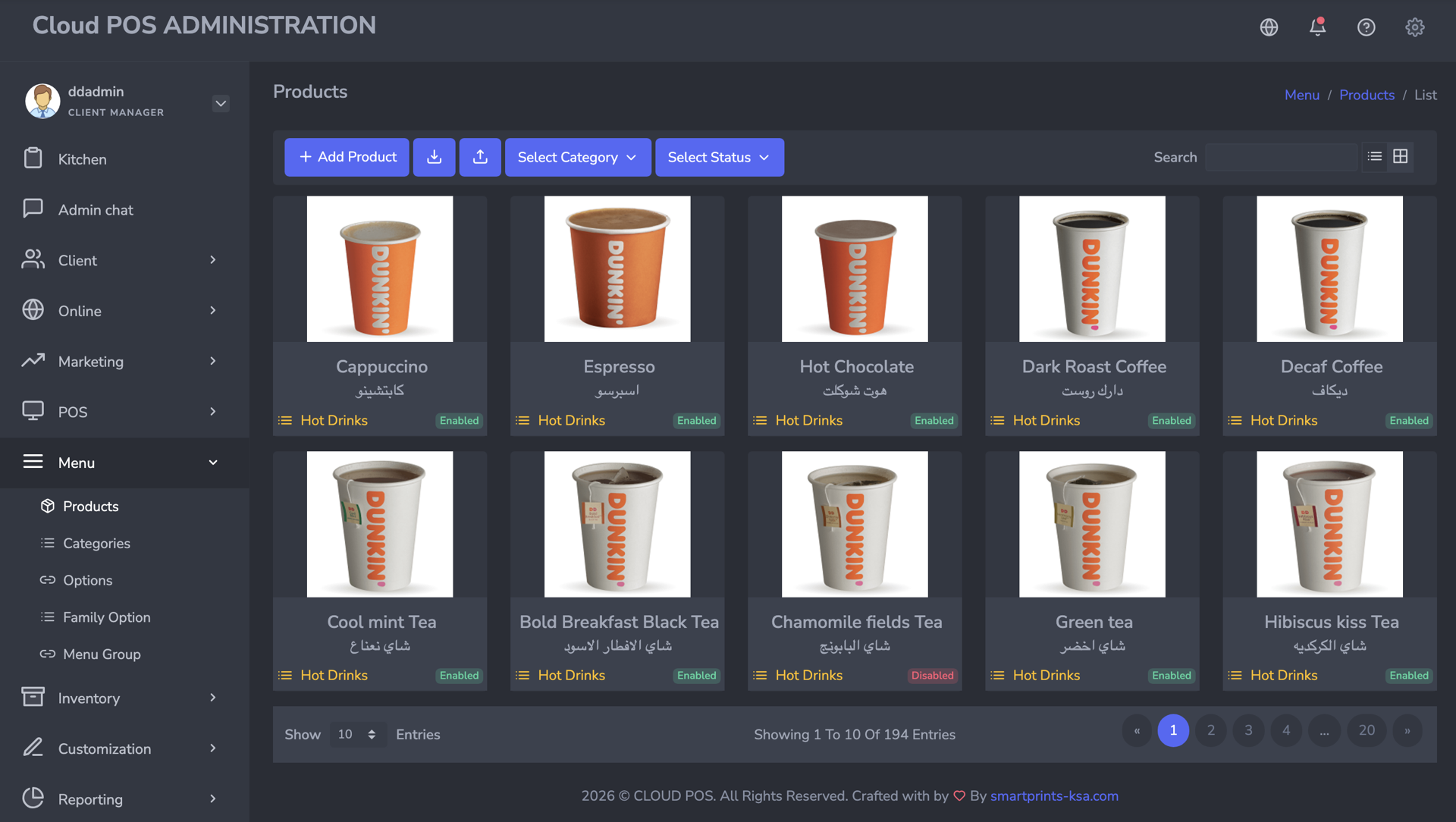
5.2 Products
Go to Menu -> Products, then click + Add Product.
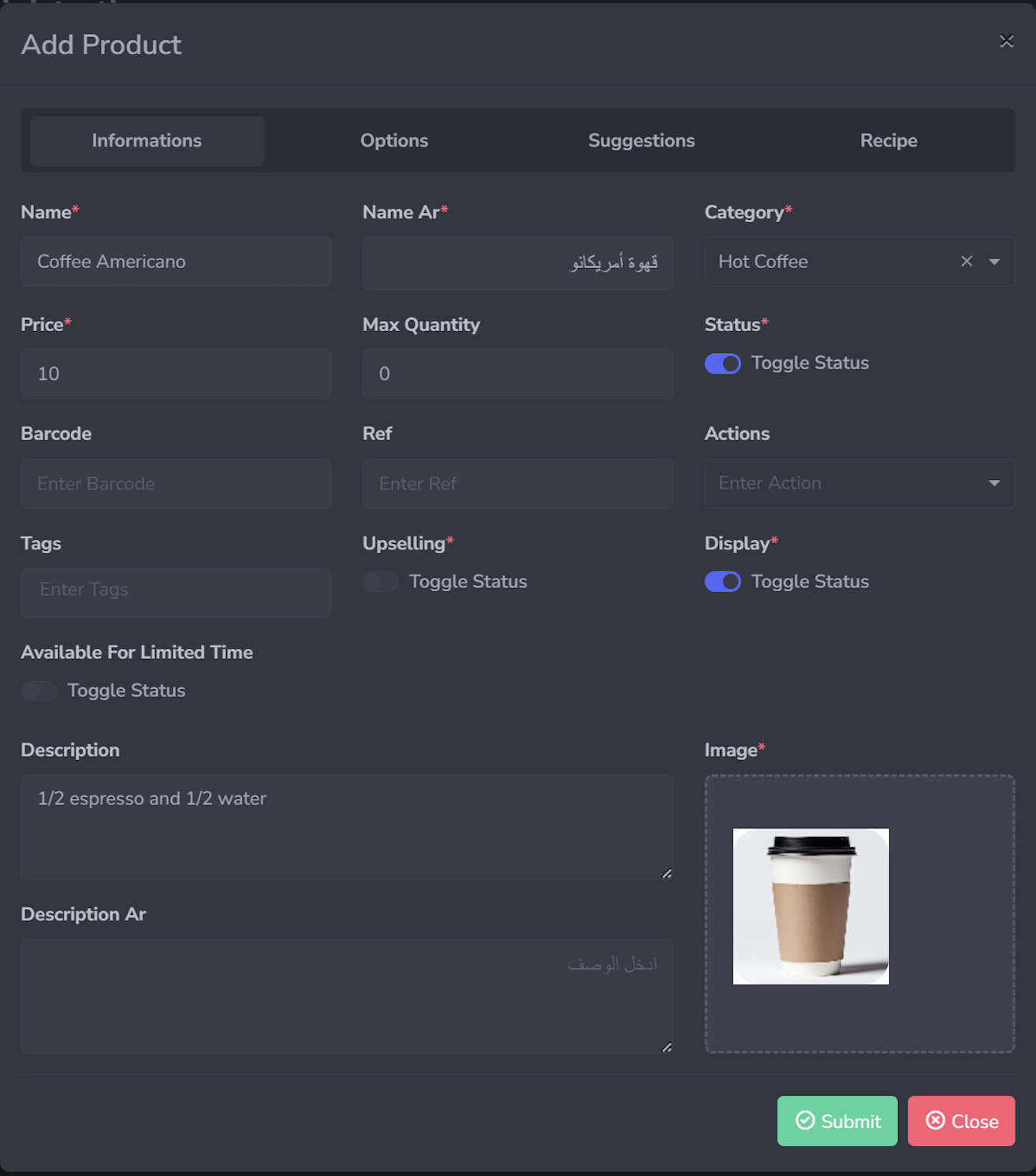
The Add Product form has four tabs at the top: Informations, Options, Suggestions, and Recipe. Fill in the Informations tab first:
Products list where existing menu items are displayed.Add Product form on the Informations tab.
Field
Details
Name *
Product name in English (e.g., Coffee Americano)
Name Ar *
Product name in Arabic (e.g., قهوة أمريكانو)
Category *
Select the parent category (e.g., Hot Coffee)
Price *
Base selling price
Max Quantity
Maximum units per order, enter 0 for no limit
Status *
Toggle to enable or disable the product
Barcode
Optional unique barcode
Ref
Optional internal reference number
Actions
Optional action linking (e.g., POS+ SKU search)
Tags
Search keywords, press Enter after each one
Upselling *
Toggle on if this product is part of an upselling strategy
Display *
Toggle to control visibility on kiosks and menus
Available For Limited Time
Toggle on for time-restricted availability
Description
Customer-facing description in English
Description Ar
Customer-facing description in Arabic
Image *
Upload a product photo
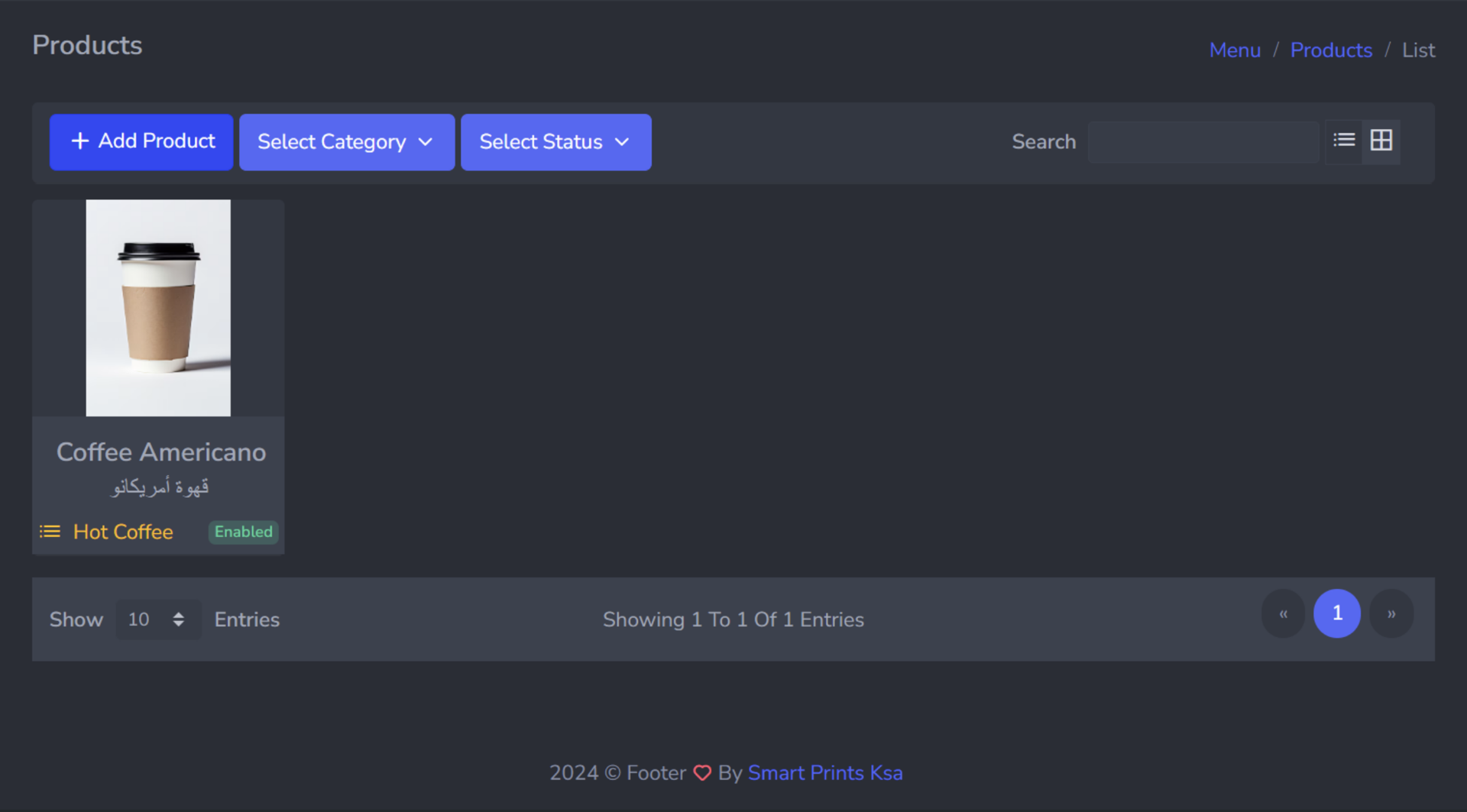
Click Submit to save. The product appears as a card in the Products list showing its image, name in both languages, category tag, and status.
Saved product card as it appears after submission.
5.3 Family Options
Go to Menu -> Family Option, then click + Add Family Option.
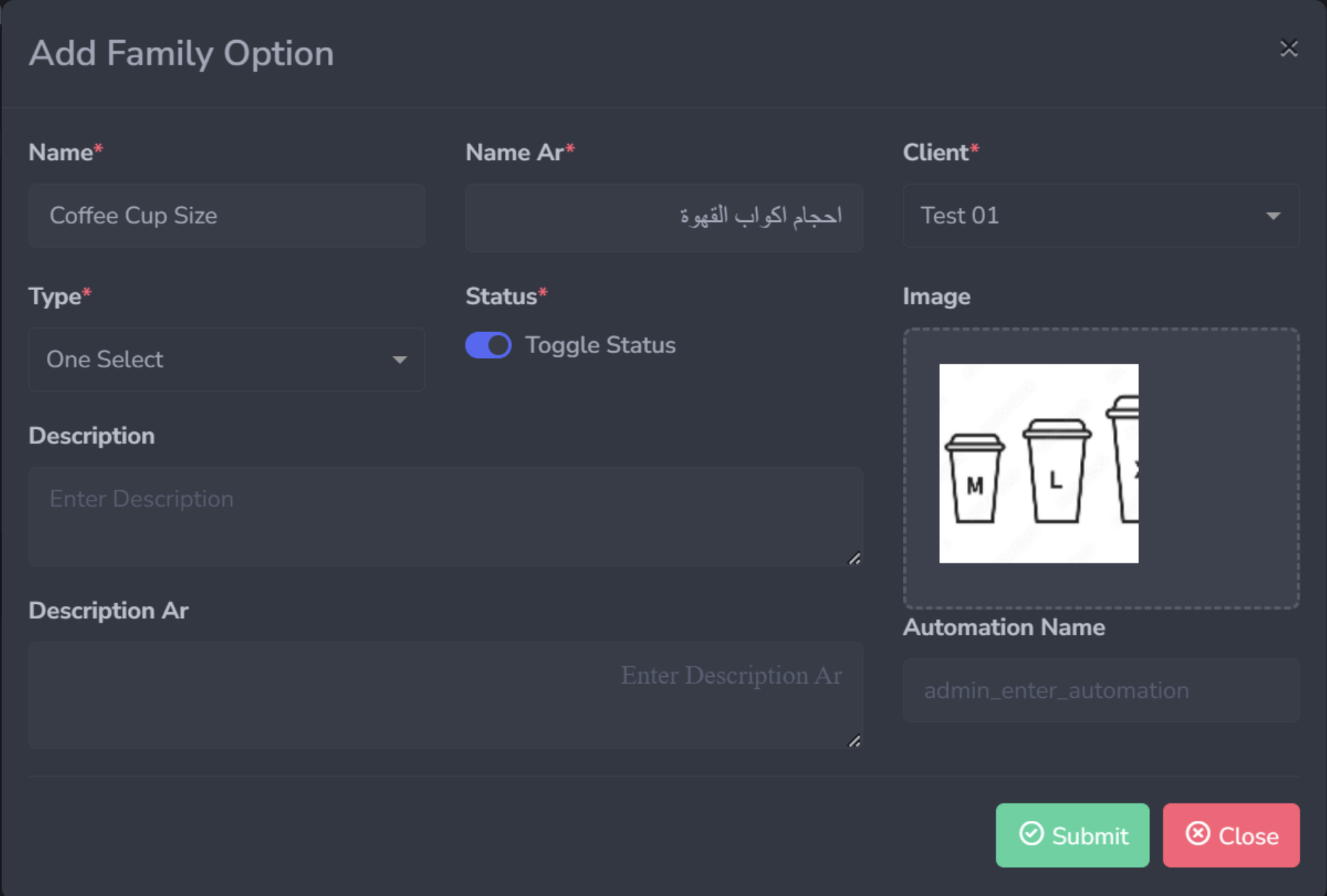
A Family Option defines the type of customisation available for a product (e.g., Coffee Cup Size).
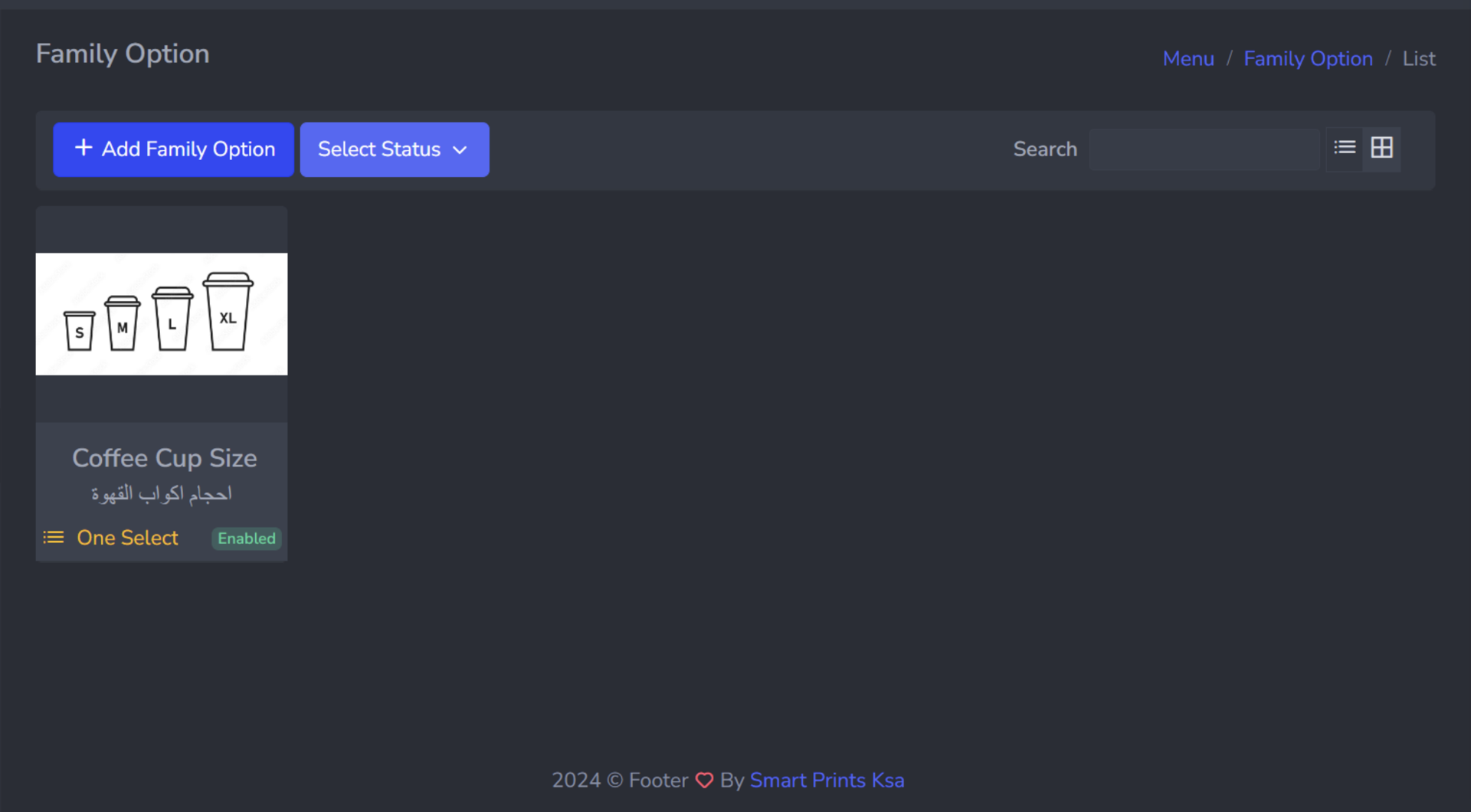
Add Family Option form used to define a customization group.Family option card after saving the setup.
Field
Details
Name *
Family option name in English (e.g., Coffee Cup Size)
Name Ar *
Name in Arabic (e.g., احجام اكواب القهوة)
Client *
Select the branch
Type *
One Select means customer picks one option only. Multi Select means customer can pick several
Status *
Toggle to enable or disable
Description
Optional description in English
Description Ar
Optional description in Arabic
Image
Upload a representative image (e.g., cup size diagram)
Automation Name
Optional, used for system automation integrations
Click Submit. The family option appears as a card showing its image, name in both languages, type, and status.
5.4 Options
Go to Menu -> Options, then click + Add Option.
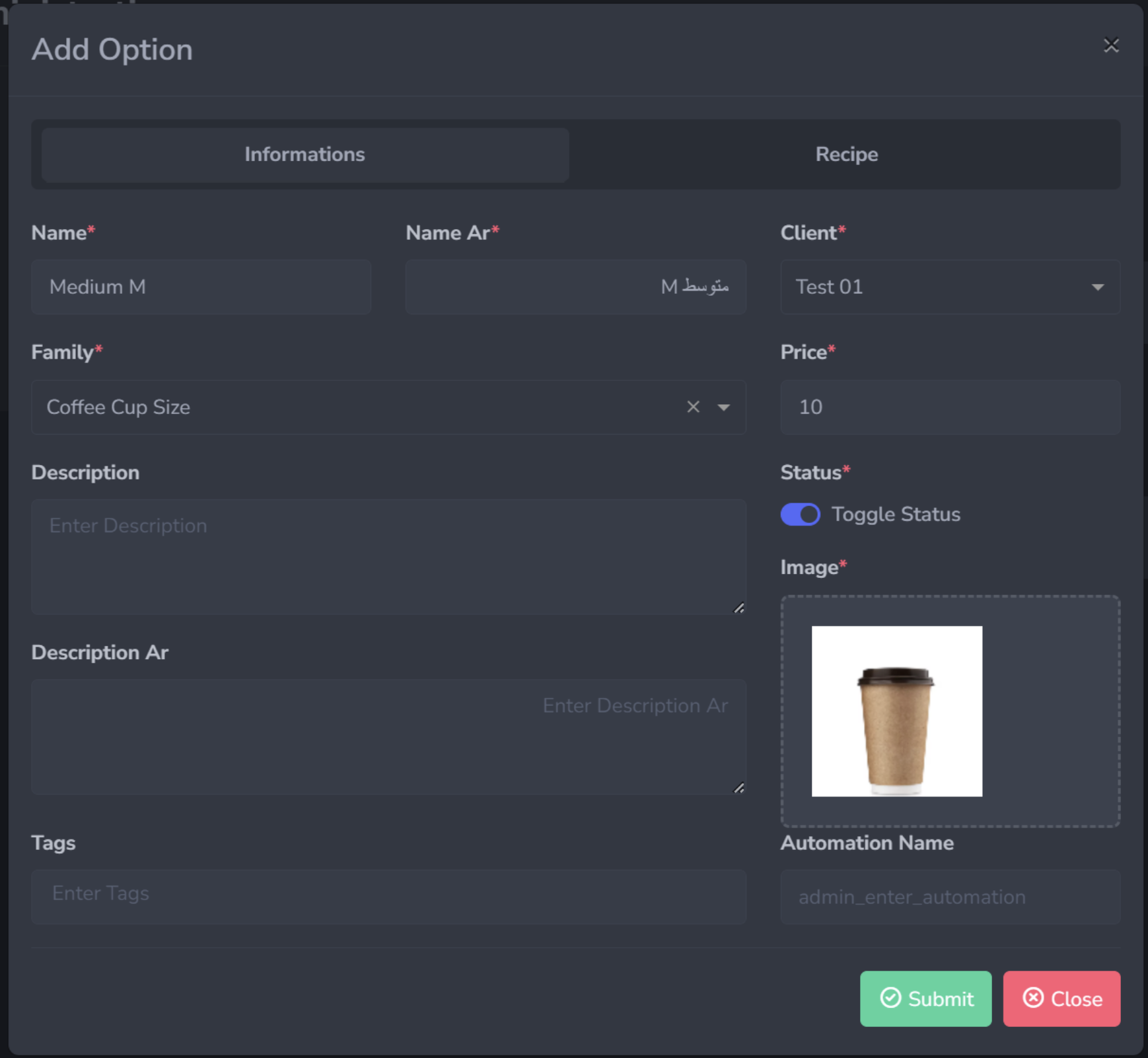
An Option is an individual choice within a Family Option (e.g., Medium M within Coffee Cup Size). The form has two tabs: Informations and Recipe.
Options list linked to the family option structure.Add Option form for a specific family option choice.
Field
Details
Name *
Option name in English (e.g., Medium M)
Name Ar *
Option name in Arabic (e.g., متوسط M)
Client *
Select the branch
Family *
Select the parent Family Option (e.g., Coffee Cup Size)
Price *
Additional charge for this option, enter 0 if free
Open the Smart Prints POS App on your device. The login screen displays the Smart Prints logo with the tagline "Enhance Machines interaction with Humans". Enter your username or email in the first field and your password in the second field. Click the orange SIGN IN button to proceed.
POS app login screen shown when the app is launched.
Step 2: Data Loading
After signing in, a loading screen appears showing the Smart Prints logo and an orange progress bar. Wait for the bar to complete as this indicates the app is downloading and synchronising all your menu, employee, and branch data from the cloud.
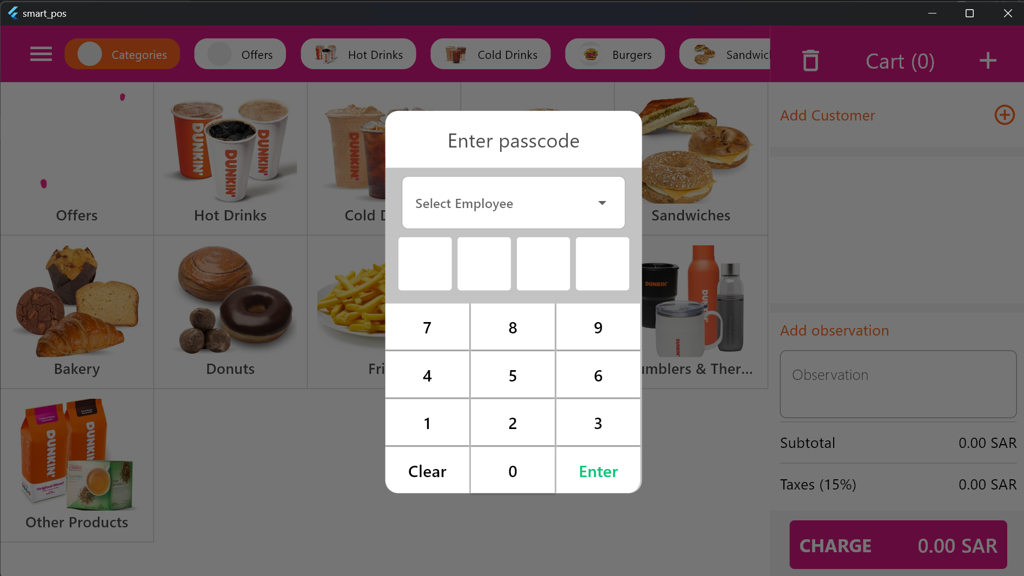
Step 3: Employee Selection and Passcode
Once loading is complete, the POS interface opens showing your live menu with category tiles such as Meals, Sandwiches, Kid's Meals, Drinks, and Side Items. An Enter Passcode overlay appears on top. Use the employee dropdown at the top of the overlay to select which employee is logging in. Enter the employee's 4-digit PIN using the on-screen number pad. Press Enter (green) to confirm or Clear to reset.
Once authenticated, the employee session begins and the POS is ready to take orders. The top bar shows Default Menu, Categories, a Search bar, a Cart counter, and a CHARGE button on the right.
Shifts can only be opened or closed from the POS App, not from the Administration panel.