Download تحميل

Stock Control Keeping Your Numbers Honest: Waste, Counts, and Stock Levels

Stock control covers the three daily actions that keep your inventory data accurate: recording waste so missing stock is explained, running counts to verify what is physically on hand, and monitoring stock status so you always know where you stand.

مراقبة المخزون الحفاظ على دقة أرقامك: الهدر والجرد ومستويات المخزون

تشمل مراقبة المخزون ثلاثة إجراءات يومية تُبقي بيانات مخزونك دقيقة: تسجيل الهدر لتفسير المخزون المفقود، وإجراء الجرد للتحقق مما هو موجود فعلياً، ومراقبة حالة المخزون حتى تعرف دائماً وضعك.

Waste Recording — Overview

تسجيل الهدر — نظرة عامة

Waste is any ingredient that is discarded without being sold. Spoiled produce, a preparation batch that went wrong, an ingredient dropped and unusable, food left over at end of day — all of it is waste. Recording waste correctly is critical because without it, the system assumes every gram of missing stock was consumed through a sale. This overstates your sales consumption, understates your actual waste costs, and makes your food cost reports misleading.

الهدر هو أي مكون يُتخلَّص منه دون أن يُباع. المنتجات الفاسدة، دفعة التحضير الفاشلة، المكون الذي سقط وأصبح غير صالح للاستخدام، الطعام المتبقي في نهاية اليوم — كل ذلك يُعدّ هدراً. تسجيل الهدر بشكل صحيح أمر بالغ الأهمية لأنه بدونه يفترض النظام أن كل جرام من المخزون المفقود قد استُهلك من خلال عملية بيع. هذا يُبالغ في استهلاك مبيعاتك، ويُقلِّل من تكاليف الهدر الفعلية، ويجعل تقارير تكلفة الغذاء مضللة.

Waste can and should be recorded any time it occurs throughout the day — not accumulated and entered at the end of the shift. The closer to real time the entry is made, the more accurate your waste data will be.

يمكن وينبغي تسجيل الهدر في أي وقت يحدث خلال اليوم — وليس تجميعه وإدخاله في نهاية الوردية. كلما كان الإدخال أقرب للوقت الفعلي، كانت بيانات الهدر أكثر دقة.

How to Access

كيفية الوصول

Navigate to Inventory → Stock → Wastes, then click + Add to open the waste entry form.

انتقل إلى المخزون ← المخزون ← الهدر، ثم انقر على + إضافة لفتح نموذج إدخال الهدر.
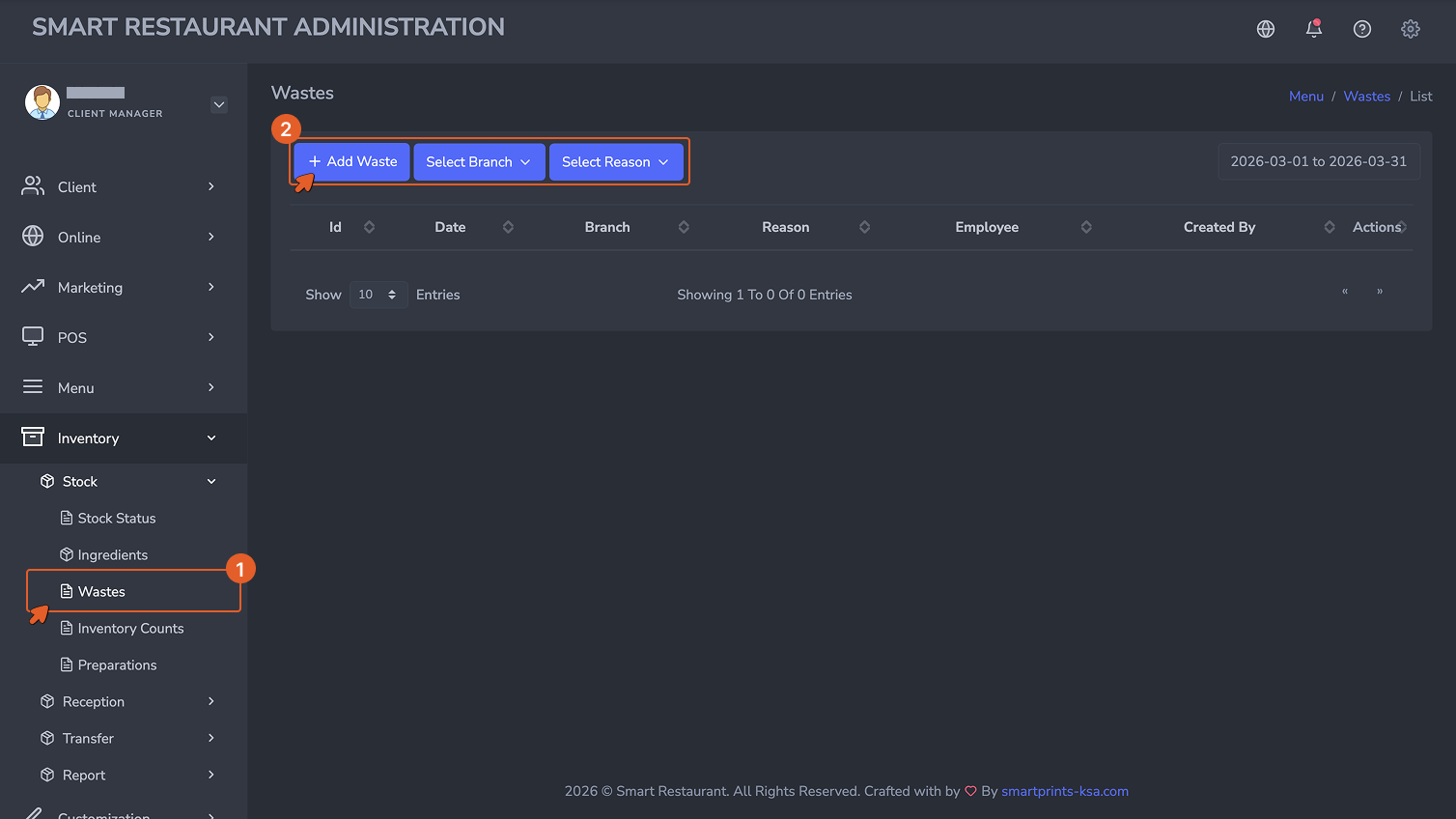
Wastes list view

The Wastes list view. Every recorded waste entry appears here with its reason, cost impact, and the employee who logged it.

عرض قائمة الهدر. تظهر هنا كل إدخالات الهدر المسجَّلة مع سببها وتأثيرها على التكلفة والموظف الذي سجَّلها.

The Waste Form — Field by Field

نموذج الهدر — حقل بحقل
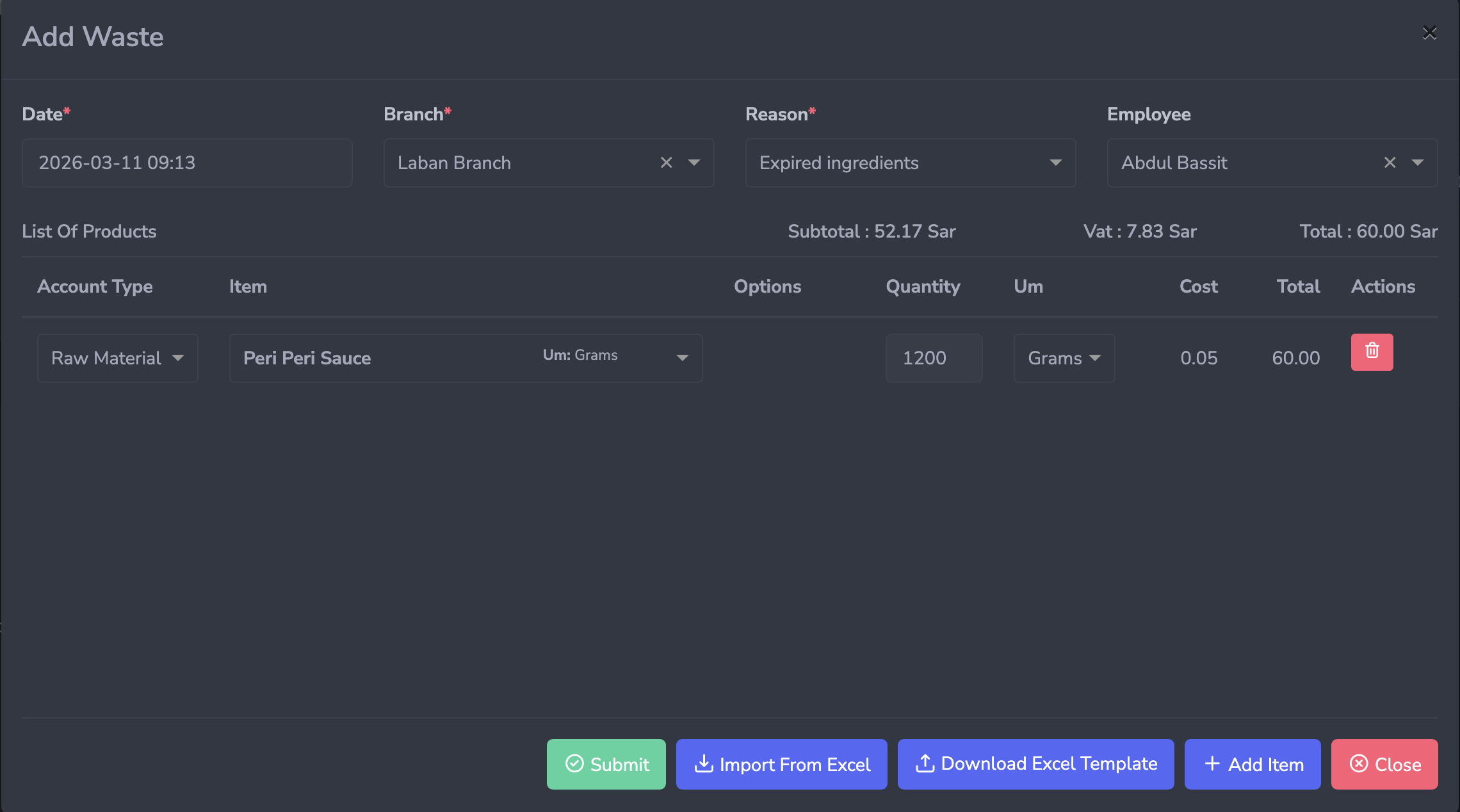
Waste form

The Waste form. Select a reason code first, then add each wasted ingredient with its quantity. The system calculates the cost impact automatically.

نموذج الهدر. اختر رمز السبب أولاً، ثم أضف كل مكون مُهدَر بكميته. يحسب النظام تأثير التكلفة تلقائياً.

  • Date (Required): The date and time the waste occurred. Auto-populated but editable. Record the actual time of the waste event, not the time of data entry if they differ.
  • Branch (Required): The branch where the waste occurred. Stock will be deducted from this branch's inventory.
  • Reason (Required): A predefined reason code explaining why the waste occurred. Common reason codes include Spoilage, Overproduction, Preparation Error, Expiry, and Breakage. A set of predefined reasons is provided but can be updated — contact support to make changes.
  • Employee (Optional): The staff member reporting the waste. Assigning an employee creates accountability and makes it easier to follow up on recurring waste patterns.
  • List of Items: Each wasted ingredient is added as a line with Type (Raw Material or Product), Item, Quantity, Unit, Cost (pulled automatically), and Total Cost. The form shows a running Subtotal, VAT, and Total as items are added. Click + Add Item to add multiple entries, or use the Excel import for bulk waste entries.
  • التاريخ (مطلوب): تاريخ ووقت حدوث الهدر. يُملأ تلقائياً ولكن قابل للتعديل. سجِّل الوقت الفعلي لحدث الهدر وليس وقت إدخال البيانات إذا اختلفا.
  • الفرع (مطلوب): الفرع الذي حدث فيه الهدر. سيُخصَم المخزون من مخزون هذا الفرع.
  • السبب (مطلوب): رمز سبب محدد مسبقاً يشرح سبب حدوث الهدر. تشمل رموز الأسباب الشائعة: التلف، والإنتاج الزائد، وخطأ التحضير، وانتهاء الصلاحية، والكسر. يتوفر مجموعة من الأسباب المحددة مسبقاً ولكن يمكن تحديثها — تواصل مع الدعم لإجراء التغييرات.
  • الموظف (اختياري): الموظف الذي يُبلِّغ عن الهدر. تعيين موظف يُنشئ مساءلة ويُسهِّل متابعة أنماط الهدر المتكررة.
  • قائمة الأصناف: يُضاف كل مكون مُهدَر كسطر يحتوي على النوع (مادة خام أو منتج)، الصنف، الكمية، الوحدة، التكلفة (تُسحب تلقائياً)، والتكلفة الإجمالية. يُظهر النموذج المجموع الجاري والضريبة والإجمالي مع إضافة الأصناف. انقر على + إضافة صنف لإضافة إدخالات متعددة، أو استخدم استيراد Excel لإدخالات الهدر الجماعية.

Submitting the Waste Entry

إرسال إدخال الهدر

Click Submit to save the entry. Stock levels for all listed ingredients decrease immediately at the selected branch. The waste is recorded in the Waste Report with its reason code, cost, and timestamp.

انقر على إرسال لحفظ الإدخال. تنخفض مستويات مخزون جميع المكونات المُدرَجة فوراً في الفرع المختار. يُسجَّل الهدر في تقرير الهدر مع رمز السبب والتكلفة والطابع الزمني.
Tip: نصيحة: Train your kitchen team to log waste as it happens rather than trying to remember quantities at end of shift. Small, frequent entries throughout the day are more accurate than one large reconstructed entry at closing time. درِّب فريق المطبخ على تسجيل الهدر فور حدوثه بدلاً من محاولة تذكر الكميات في نهاية الوردية. الإدخالات الصغيرة والمتكررة على مدار اليوم أكثر دقة من إدخال واحد كبير مُعاد تكوينه وقت الإغلاق.

Inventory Counts

An inventory count physically verifies what's on your shelves versus your system records. The objective is to ensure realistic stock levels that can be compared against theoretical stock based on your recipes.

جرد المخزون

جرد المخزون يُتحقَّق فعلياً مما هو على رفوفك مقابل سجلات نظامك. الهدف هو ضمان مستويات مخزون واقعية يمكن مقارنتها بالمخزون النظري بناءً على وصفاتك.

Overview

نظرة عامة

Counts are how the system corrects for all the small discrepancies that build up over time — measurement rounding, unrecorded waste, delivery short-shipments, and so on. Regular counts keep your stock data grounded in physical reality.

الجرد هو الطريقة التي يُصحِّح بها النظام جميع التناقضات الصغيرة التي تتراكم بمرور الوقت — تقريب القياسات، والهدر غير المسجَّل، ونقص التسليمات، وما إلى ذلك. يُبقي الجرد المنتظم بيانات مخزونك مرتبطة بالواقع الفعلي.

How to Access

كيفية الوصول

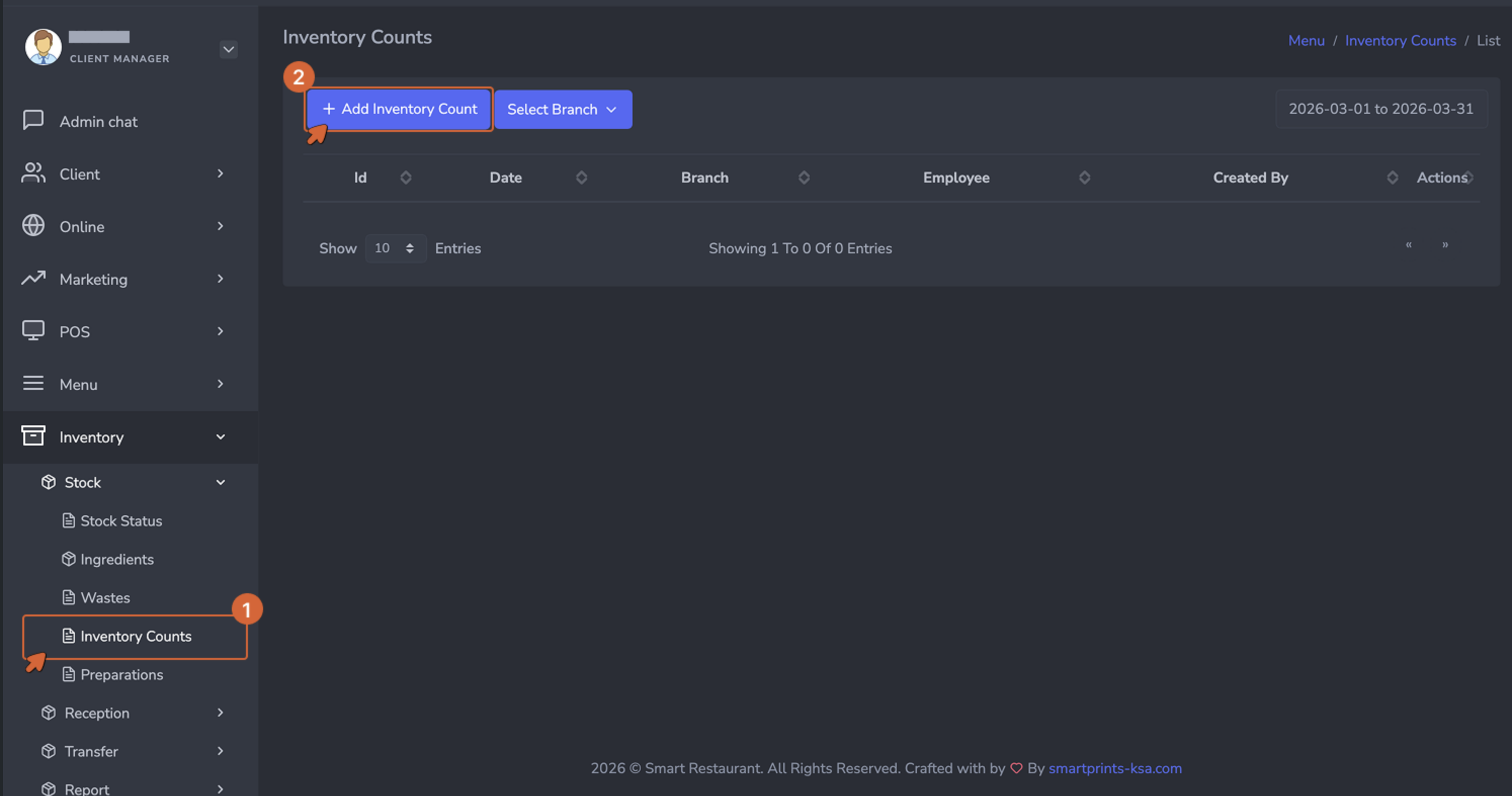
Navigate to Inventory → Stock → Inventory Counts, then click + Add to open the count form.

انتقل إلى المخزون ← المخزون ← جرد المخزون، ثم انقر على + إضافة لفتح نموذج الجرد.

Inventory Counts list

The Inventory Counts list. Every count is recorded here, tied to a specific branch and date.

قائمة جرد المخزون. يُسجَّل هنا كل جرد، مرتبطاً بفرع وتاريخ محددين.

The Inventory Count Form

نموذج جرد المخزون

Inventory Count form

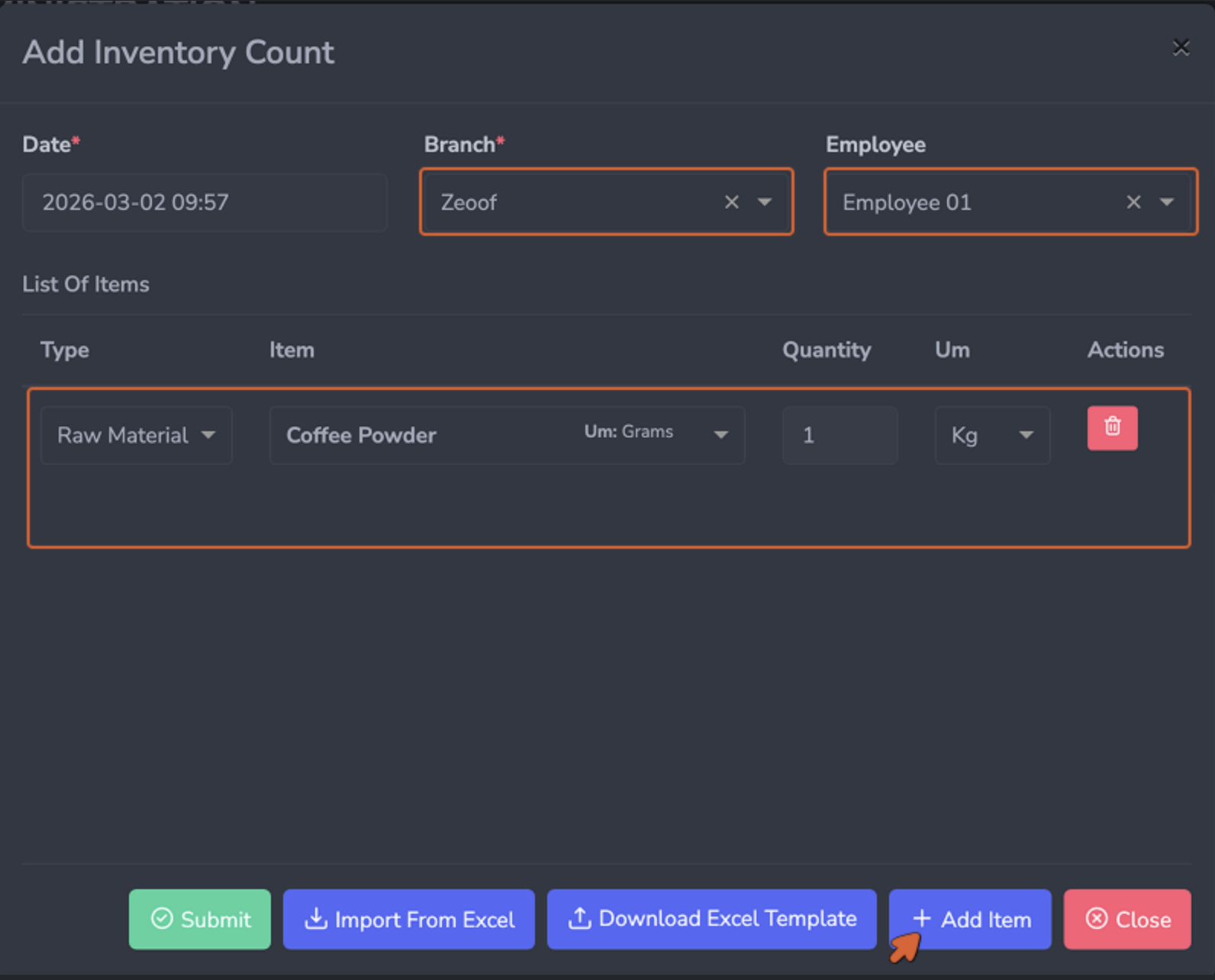
The Inventory Count form. Add each physically counted ingredient as a line with its actual measured quantity.

نموذج جرد المخزون. أضف كل مكون تم عدّه فعلياً كسطر بكميته المقاسة الفعلية.

  • Date (Required): The date and time the physical count was conducted.
  • Branch (Required): The branch being counted. Each count is scoped to one branch.
  • Employee (Optional): The staff member performing the count.
  • List of Items: Each counted ingredient is added as a line with Type, Item, Unit of Measure, and Quantity. Use + Add Item for individual entries or use the Excel Template import for full counts across all ingredients.
  • التاريخ (مطلوب): تاريخ ووقت إجراء الجرد الفعلي.
  • الفرع (مطلوب): الفرع الذي يتم جرده. كل جرد مقتصر على فرع واحد.
  • الموظف (اختياري): الموظف الذي يُجري الجرد.
  • قائمة الأصناف: يُضاف كل مكون تم عدّه كسطر يحتوي على النوع، الصنف، وحدة القياس، والكمية. استخدم + إضافة صنف للإدخالات الفردية أو استخدم استيراد قالب Excel للجرد الكامل عبر جميع المكونات.

When to Count

متى تُجري الجرد

  • Pre-shift counts are performed before the kitchen opens to verify that starting stock matches expectations before production begins. These are typically partial counts focused on the highest-consumption ingredients.
  • Post-shift counts are performed after the kitchen closes to capture end-of-day stock levels. Comparing pre-shift and post-shift counts against sales consumption data gives you a precise picture of where discrepancies occurred.
  • Scheduled full counts cover every trackable ingredient across all storage areas. These are typically weekly or monthly and are used for financial reporting and purchasing planning.
  • Spot counts are unscheduled partial counts triggered by a specific concern — a stock level that looks unexpectedly low, a report anomaly, or a suspected discrepancy in a specific category.
  • جرد ما قبل الوردية يُجرى قبل فتح المطبخ للتحقق من أن المخزون الابتدائي يتوافق مع التوقعات قبل بدء الإنتاج. عادةً ما تكون هذه جرود جزئية تركِّز على المكونات الأعلى استهلاكاً.
  • جرد ما بعد الوردية يُجرى بعد إغلاق المطبخ لتسجيل مستويات المخزون في نهاية اليوم. مقارنة جرود ما قبل وما بعد الوردية ببيانات استهلاك المبيعات تمنحك صورة دقيقة عن مكان حدوث التناقضات.
  • الجرد الكامل المجدوَل يغطي كل مكون قابل للتتبع عبر جميع مناطق التخزين. عادةً ما يكون أسبوعياً أو شهرياً ويُستخدم للتقارير المالية وتخطيط المشتريات.
  • الجرد الفجائي هو جرد جزئي غير مجدوَل يُثيره قلق محدد — مستوى مخزون يبدو منخفضاً بشكل غير متوقع، أو شذوذ في التقرير، أو تناقض مشتبه به في فئة معينة.

Interpreting Count Results

تفسير نتائج الجرد

After submitting a count, navigate to Stock Status to review the updated quantities. A gap between expected and counted quantity is called a variance. Small variances are normal and typically reflect minor measurement differences. Large or consistent variances in the same ingredient are signals worth investigating.

بعد إرسال الجرد، انتقل إلى حالة المخزون لمراجعة الكميات المحدَّثة. الفجوة بين الكمية المتوقعة والمعدودة تُسمى انحرافاً. الانحرافات الصغيرة طبيعية وتعكس عادةً فروقات طفيفة في القياس. الانحرافات الكبيرة أو المتسقة في نفس المكون هي إشارات تستحق التحقيق.

Common causes include unrecorded waste, recipe portion drift, supplier short-delivery not caught at reception, or theft.

الأسباب الشائعة تشمل الهدر غير المسجَّل، وانجراف أجزاء الوصفة، ونقص تسليم المورد الذي لم يُكتشف عند الاستلام، أو السرقة.

Stock Status — Monitoring Your Inventory

The Stock Status page is your real-time dashboard for current inventory levels. It shows the on-hand quantity for every ingredient and product across all branches at any given moment.

حالة المخزون — مراقبة مخزونك

صفحة حالة المخزون هي لوحة التحكم الفورية لمستويات المخزون الحالية. تُظهر الكمية الموجودة لكل مكون ومنتج عبر جميع الفروع في أي لحظة.

Overview

نظرة عامة

Check Stock Status daily — at the start of the day to verify starting levels, and at the end of the day to identify anything that needs attention before the next shift.

تحقق من حالة المخزون يومياً — في بداية اليوم للتحقق من المستويات الابتدائية، وفي نهاية اليوم لتحديد أي شيء يحتاج إلى انتباه قبل الوردية التالية.

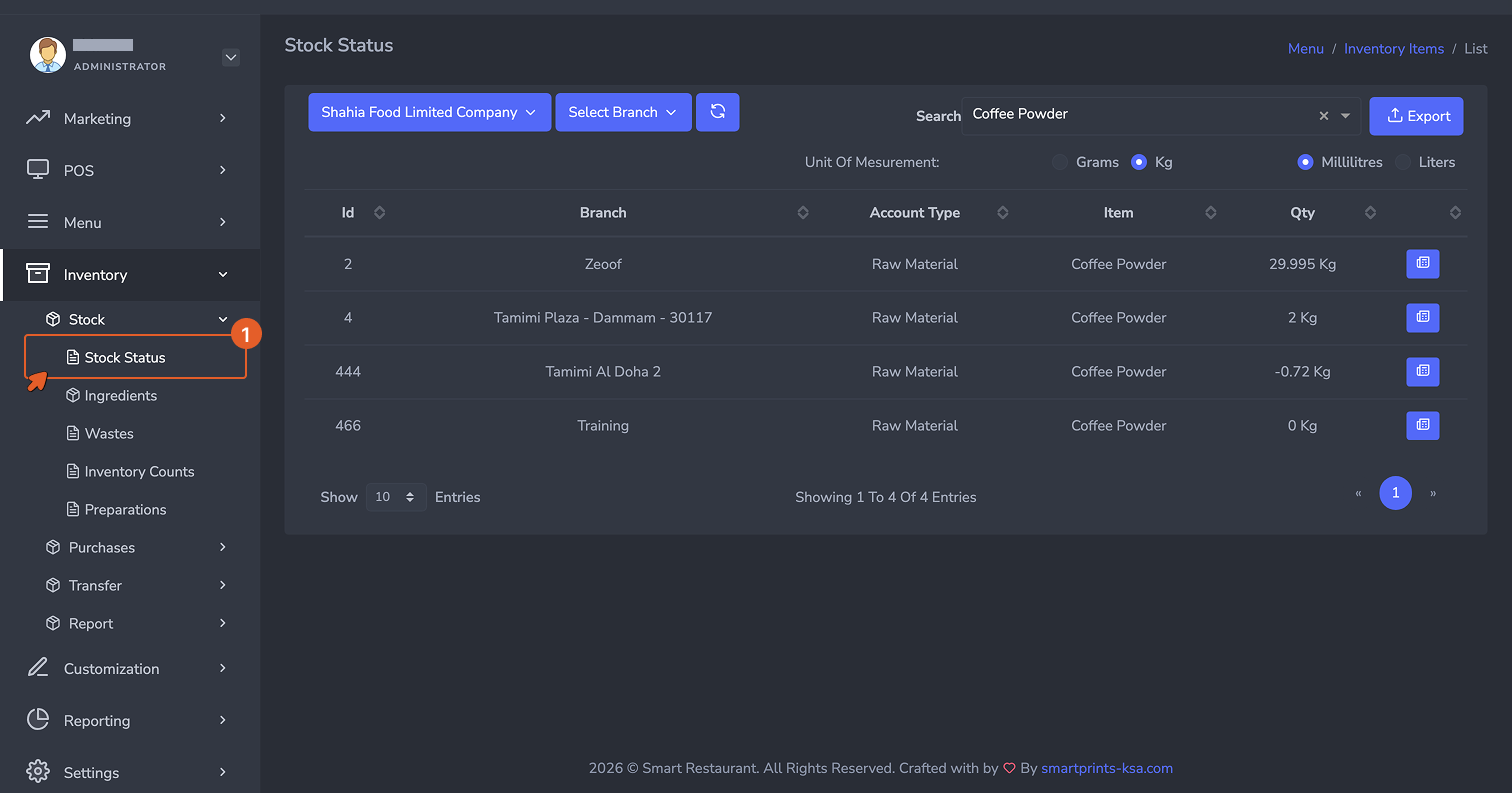
Navigate to Inventory → Stock → Stock Status from the sidebar.

انتقل إلى المخزون ← المخزون ← حالة المخزون من الشريط الجانبي.

Stock Status view

The Stock Status view. Every ingredient at every branch is listed with its current on-hand quantity. Use the filters to narrow by branch or item type.

عرض حالة المخزون. يُدرَج كل مكون في كل فرع بكميته الحالية الموجودة. استخدم المرشِّحات للتضييق حسب الفرع أو نوع الصنف.

Reading the Stock Status View

قراءة عرض حالة المخزون

  • Branch: The location where the stock is held.
  • Account Type: Whether the item is a Raw Material or a Product.
  • Item: The ingredient or product name.
  • Qty: The current quantity on hand with its unit. This number reflects all recorded activity up to the present moment.
  • الفرع: الموقع الذي يُحتفَظ فيه بالمخزون.
  • نوع الحساب: ما إذا كان الصنف مادة خام أم منتجاً.
  • الصنف: اسم المكون أو المنتج.
  • الكمية: الكمية الحالية الموجودة مع وحدتها. يعكس هذا الرقم جميع النشاطات المسجَّلة حتى اللحظة الراهنة.
Negative quantities الكميات السالبة indicate that consumption has exceeded recorded stock. This almost always means either an ingredient was consumed through sales before its stock was entered, or a waste or adjustment was not recorded. Negative quantities need to be investigated and corrected through a manual adjustment or a new inventory count. تشير إلى أن الاستهلاك قد تجاوز المخزون المسجَّل. هذا يعني دائماً تقريباً إما أن مكوناً استُهلك من خلال المبيعات قبل إدخال مخزونه، أو أن هدراً أو تعديلاً لم يُسجَّل. الكميات السالبة تحتاج إلى تحقيق وتصحيح من خلال تعديل يدوي أو جرد مخزون جديد.

Stock Status History

سجل حالة المخزون

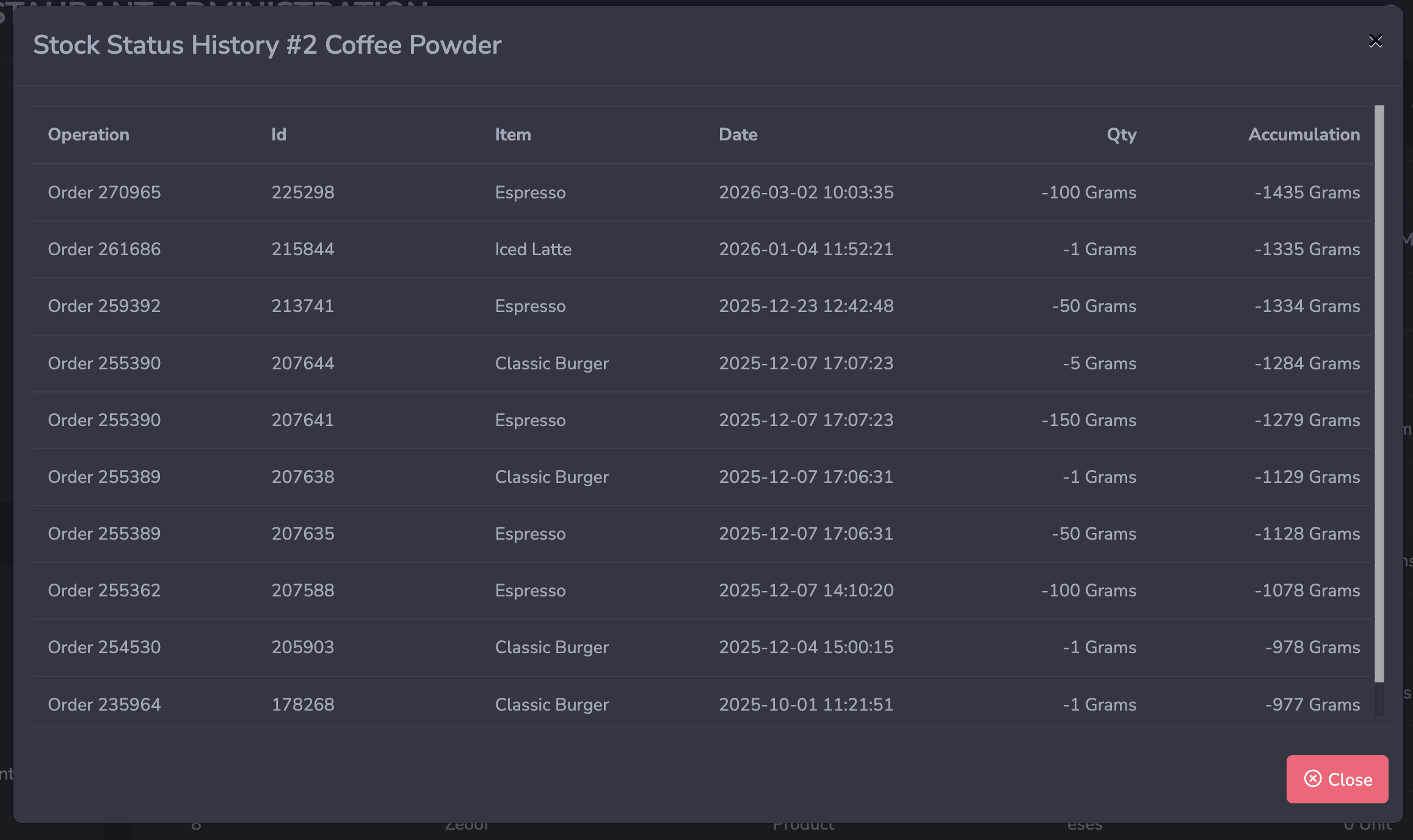
Click the History button on any ingredient row to open the full movement log for that item. The history shows every event that has affected this ingredient's stock — purchase receptions, sales consumption, waste entries, transfers, and count adjustments — with the quantity change and running balance after each event.

انقر على زر السجل في أي صف من صفوف المكونات لفتح سجل الحركة الكامل لذلك الصنف. يُظهر السجل كل حدث أثَّر في مخزون هذا المكون — استلامات الشراء، واستهلاك المبيعات، وإدخالات الهدر، والتحويلات، وتعديلات الجرد — مع تغيير الكمية والرصيد الجاري بعد كل حدث.

Stock Status History

The Stock Status History for a single ingredient. Every movement is logged with its source, timestamp, quantity change, and running balance. Use this to trace how a stock level reached its current state.

سجل حالة المخزون لمكون واحد. كل حركة مسجَّلة بمصدرها وطابعها الزمني وتغيير الكمية والرصيد الجاري. استخدم هذا لتتبع كيف وصل مستوى المخزون إلى حالته الراهنة.

Use the history view to investigate unexpected stock levels. If an ingredient is lower than expected, the history will show you exactly which events drove it there — and whether any expected events, like a purchase reception, are missing.

استخدم عرض السجل للتحقيق في مستويات المخزون غير المتوقعة. إذا كان مكون أقل مما هو متوقع، فسيُظهر لك السجل بالضبط الأحداث التي أدت إلى ذلك — وما إذا كانت أي أحداث متوقعة، مثل استلام شراء، مفقودة.